Lost Your Job in Texas? How to Apply for Unemployment, Step by Step
- Apply online with the Texas Workforce Commission (TWC) as soon as you’re out of work or your hours are cut — but not before your last workday.
- Create a User ID in TWC’s Unemployment Benefits Services (UBS), then select Apply for Benefits. The main application screens are shown below, step by step.
- Request payment every two weeks. TWC says you must request payment to receive benefits.
Losing your job is stressful, and the paperwork can feel like one more thing on your plate. This guide walks you through the Texas Workforce Commission (TWC) system, so you know what goes in each box.
Also lost your health insurance? See Lost Your Job and Your Health Insurance?. Short on rent? See Can’t Pay Rent This Month?.
When should I file for unemployment in Texas?
| Question | Answer (TWC, checked Nov 3, 2026) |
|---|---|
| When should I apply? | As soon as you’re unemployed or your hours are reduced — but only after your last workday. Your claim starts on the Sunday of the week you apply |
| Where do I apply? | Online at Unemployment Benefits Services. If you can’t apply online, call a Tele-Center at 800-939-6631 during regular business hours |
| How much could I get? | Between $76 and $619 a week, depending on your past wages |
| Is there a waiting week? | Yes. TWC holds your first week’s payment until you go back to full-time work or use up your benefits (then TWC pays it) |
| I worked in another state | Apply in that state instead |
What to have ready
TWC says you must provide:
You’ll also need to enter a one-time code every time you log in. TWC uses it to make sure it’s really you.
How to apply for unemployment in Texas, step by step
(Optional) Estimate your weekly benefit
Before applying, you can see roughly how much you might get. Go to the TWC benefits estimator. The screen shows which months count. When we checked it on November 3, 2026, it said that if you apply by January 2, 2027, it uses your wages from July 1, 2025 to June 30, 2026. This is your base period — the year of wages TWC uses to figure your benefit.
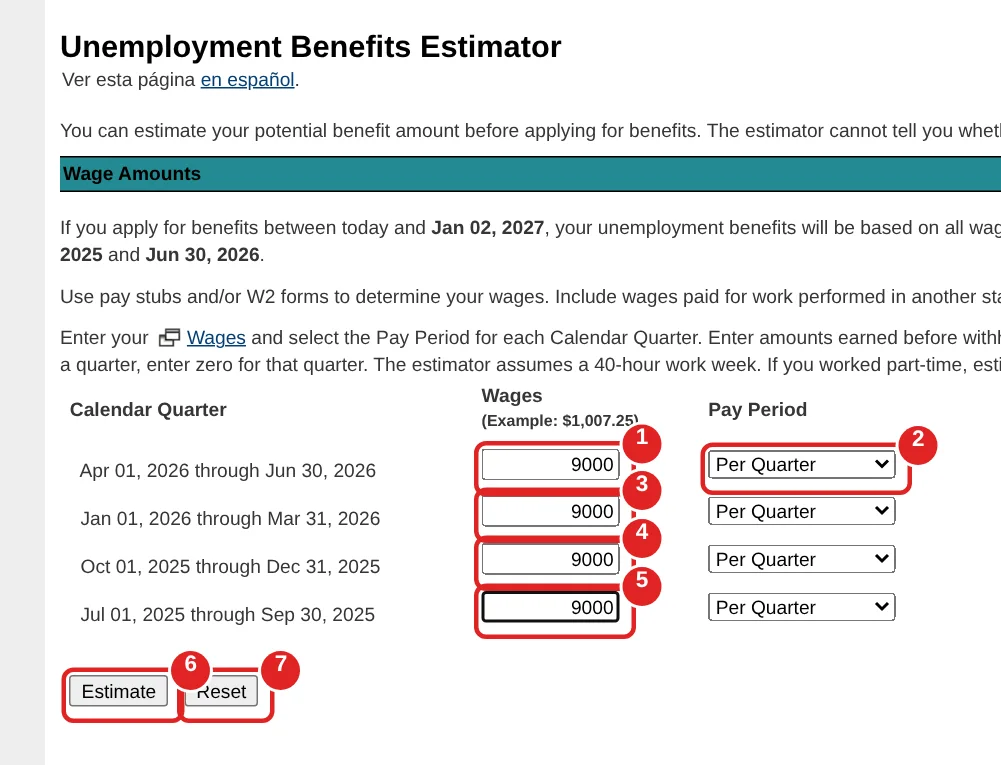
| # | Box | What to enter | Example | Watch out |
|---|---|---|---|---|
| ① | Wages (first row) | Your pay before taxes for that 3-month period | 9000 | Use pay stubs or your W-2. Enter 0 if you weren’t paid that quarter |
| ② | Pay Period | How the number you typed is counted. Choices: Per Hour, Per Day, Per Week, Every Two Weeks, Twice A Month, Per Month, Per Quarter, Per Year | Per Quarter | Pick a pay period for every row |
| ③ | Wages (second row) | Same as ① for this period | 9000 | — |
| ④ | Wages (third row) | Same as ① for this period | 9000 | — |
| ⑤ | Wages (fourth row) | Same as ① for this period | 9000 | Include pay for work in another state, for the federal government and for the military |
| ⑥ | Estimate | Click to see the result | — | — |
| ⑦ | Reset | Clears all boxes | — | — |
Read your estimate
Here’s your estimate. Treat it as a ballpark — TWC uses the wages your employers reported, so your real amount can be a little different.
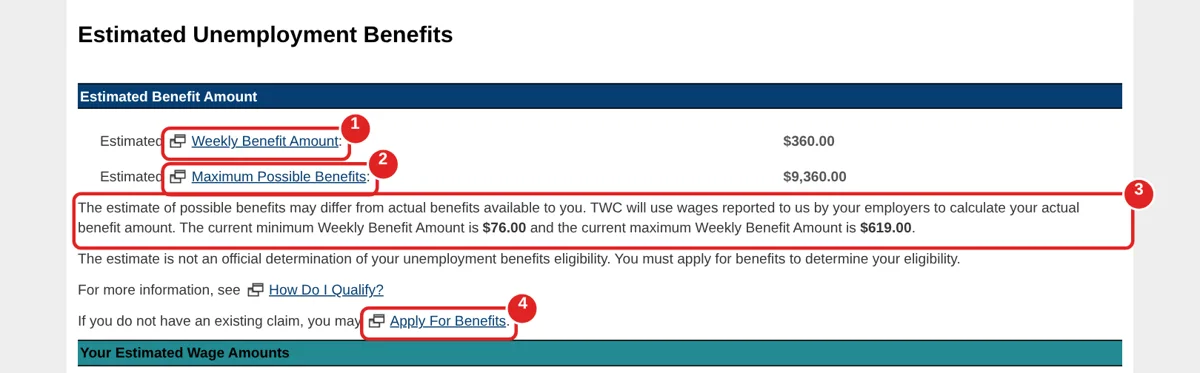
| # | What you see | What it means | What to do |
|---|---|---|---|
| ① | Estimated Weekly Benefit Amount | Roughly what you’d get each week | Use it to plan your budget |
| ② | Estimated Maximum Possible Benefits | The most you could get in total for this claim | — |
| ③ | Minimum and maximum note | The weekly amount is between $76 and $619 | TWC uses the wages your employers reported, so the real amount can differ |
| ④ | Apply For Benefits | Takes you to the application | Click when you’re ready |
Open Unemployment Benefits Services
Ready to apply? Everything happens in TWC’s Unemployment Benefits Services, or UBS for short. If this is your first time, you’ll make a User ID here before anything else.
Go to Unemployment Benefits Services.
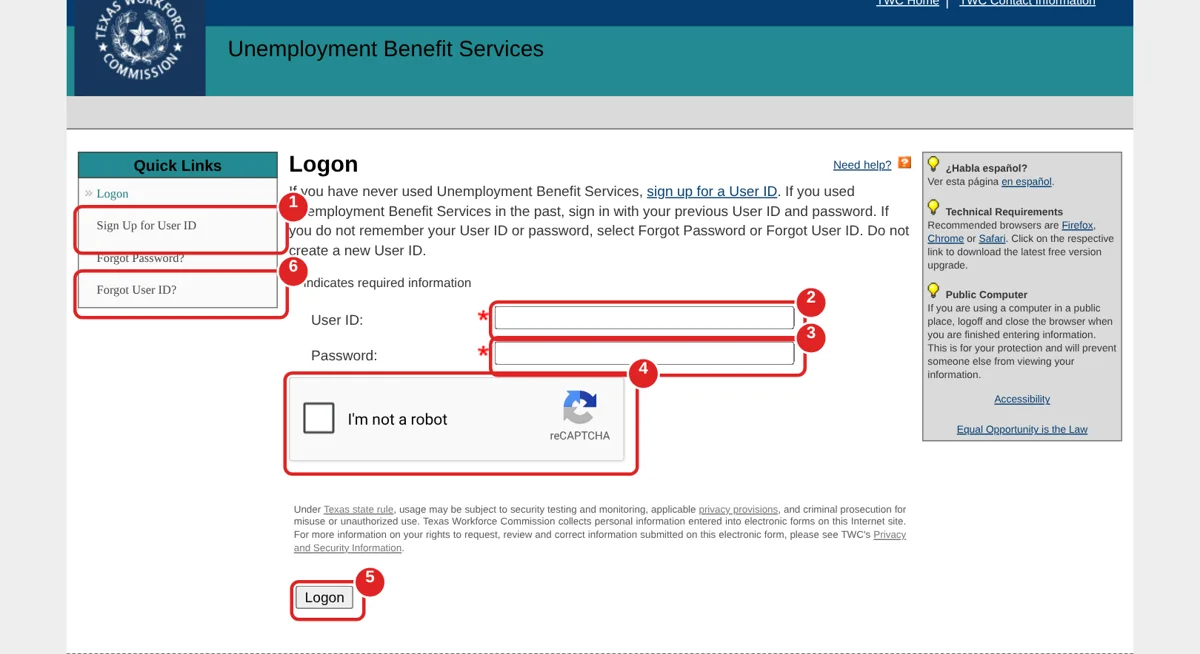
| # | Box | What to do | Example | Watch out |
|---|---|---|---|---|
| ① | Sign Up for User ID | First time? Click this and go to Step 4 | — | Don’t make a new ID if you already have one |
| ② | User ID | Already have an ID? Type it here | — | Same ID as WorkInTexas.com |
| ③ | Password | Type your password | — | Passwords are case sensitive |
| ④ | I’m not a robot | Check the box | — | You may be asked to pick some pictures |
| ⑤ | Logon | Click to log in | — | Then enter the one-time code TWC sends you |
| ⑥ | Forgot User ID? / Forgot Password? | Use these if you can’t log in | — | Don’t create a new account instead |
Create your User ID: name and password
Time to create your account. Use your legal name and pick a password you’ll remember — you’ll log in every two weeks to request payments.
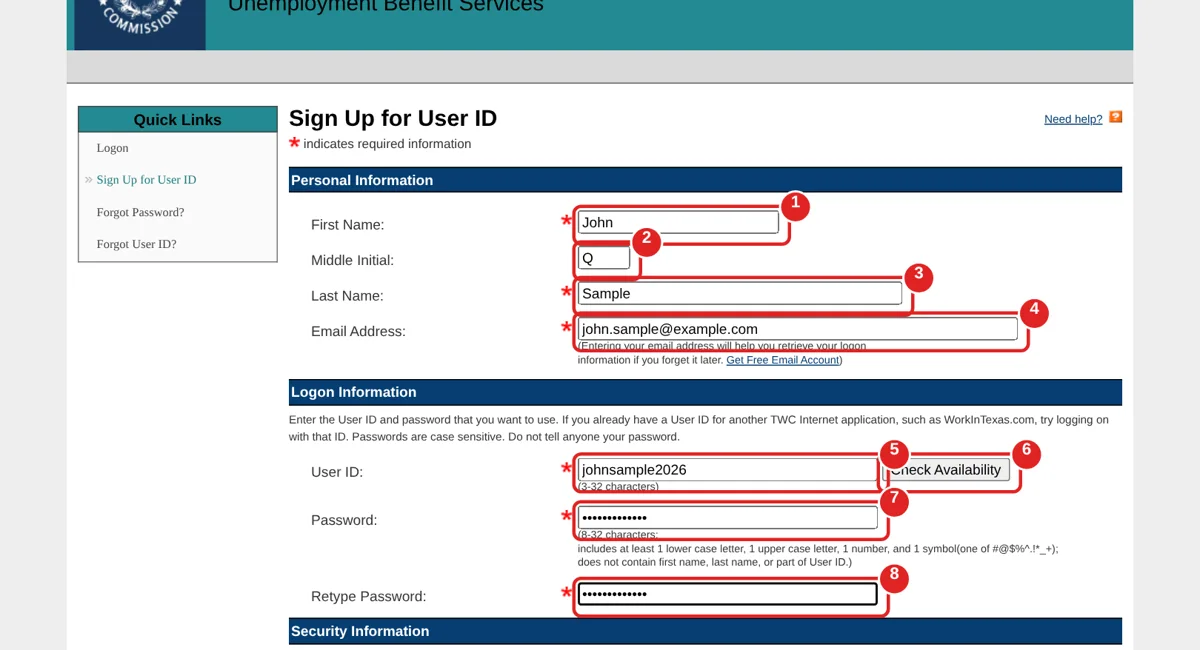
| # | Box | What to enter | Example | Watch out |
|---|---|---|---|---|
| ① | First Name | Your legal first name (required) | John | — |
| ② | Middle Initial | Optional | Q | — |
| ③ | Last Name | Your legal last name (required) | Sample | — |
| ④ | Email Address | An email you check (required) | john.sample@example.com | Helps you get your login back if you forget it |
| ⑤ | User ID | A name you’ll log in with | johnsample2026 | 3–32 characters |
| ⑥ | Check Availability | Click to see if the User ID is free | — | If it’s taken, try another one |
| ⑦ | Password | Your new password | — | 8–32 characters, with at least 1 lower case letter, 1 upper case letter, 1 number and 1 symbol (one of # @ $ % ^ . ! * _ +). It can’t contain your first or last name or any part of your User ID |
| ⑧ | Retype Password | Type it again | — | — |
Create your User ID: security questions
Last part of the account: three security questions. If you ever forget your password, these answers are how you get back in, so pick ones only you know.
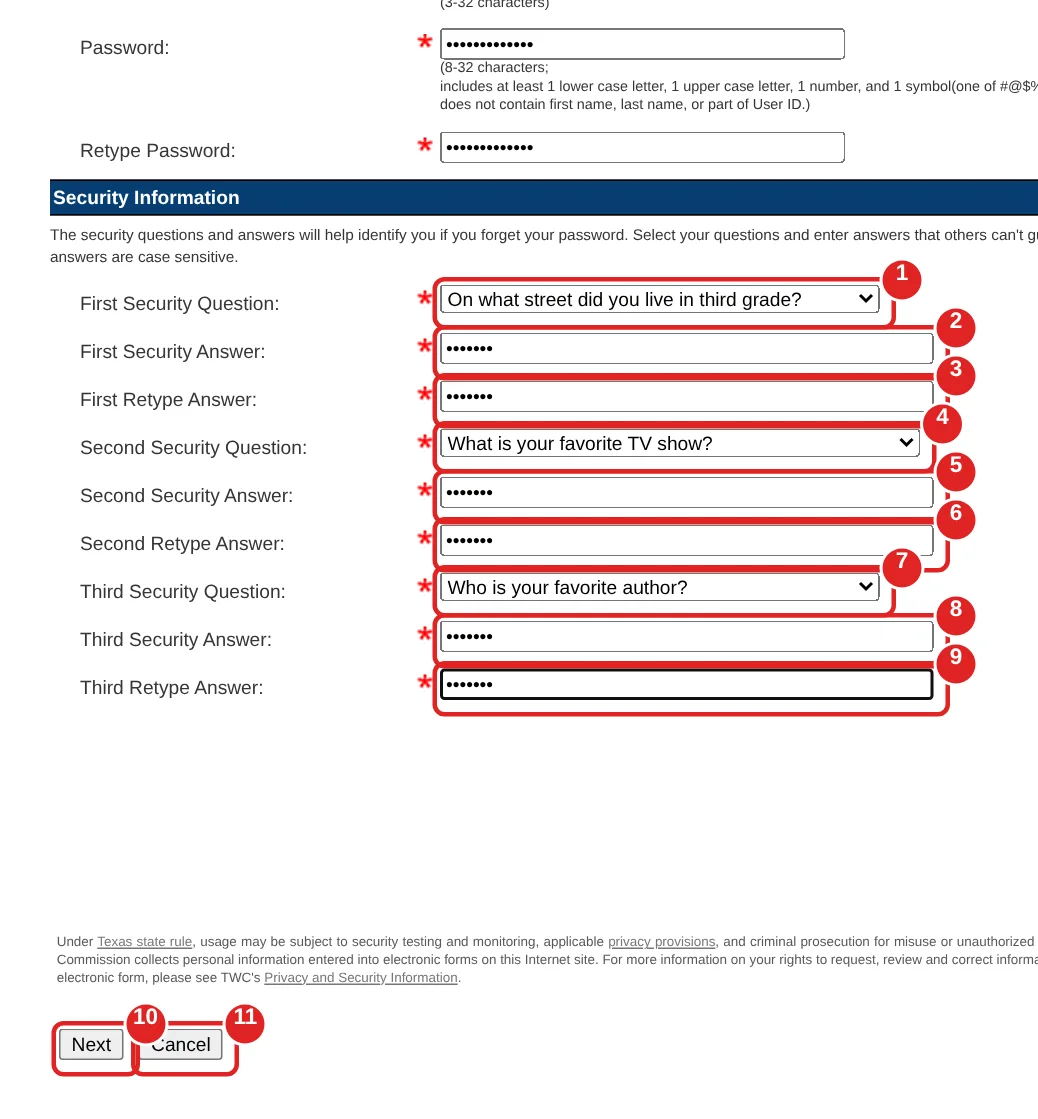
| # | Box | What to do | Example | Watch out |
|---|---|---|---|---|
| ① | First Security Question | Pick a question from the list | On what street did you live in third grade? | Pick one only you know the answer to |
| ② | First Security Answer | Type your answer | — | Answers are case sensitive |
| ③ | First Retype Answer | Type the same answer again | — | — |
| ④ | Second Security Question | Pick a different question | What is your favorite TV show? | — |
| ⑤ | Second Security Answer | Type your answer | — | — |
| ⑥ | Second Retype Answer | Type it again | — | — |
| ⑦ | Third Security Question | Pick a different question | Who is your favorite author? | — |
| ⑧ | Third Security Answer | Type your answer | — | — |
| ⑨ | Third Retype Answer | Type it again | — | Write your answers somewhere safe |
| ⑩ | Next | Click to finish creating your User ID | — | — |
| ⑪ | Cancel | Don’t click unless you want to start over | — | — |
Apply for benefits: the application screens
You can’t see these screens without a real Social Security number, so we recreated them from TWC’s official tutorial, How to Apply for Unemployment Benefits Online. The boxes and their order follow the tutorial. We left out some notes and fields, and the dates on your screen will be different — TWC fills them in for you.
Log in, then enter your Social Security number
Now the real application starts. First, TWC needs your Social Security number to find your work history. It only takes a moment.
Log in with your User ID and password, enter the one-time code, then select Apply for Benefits.
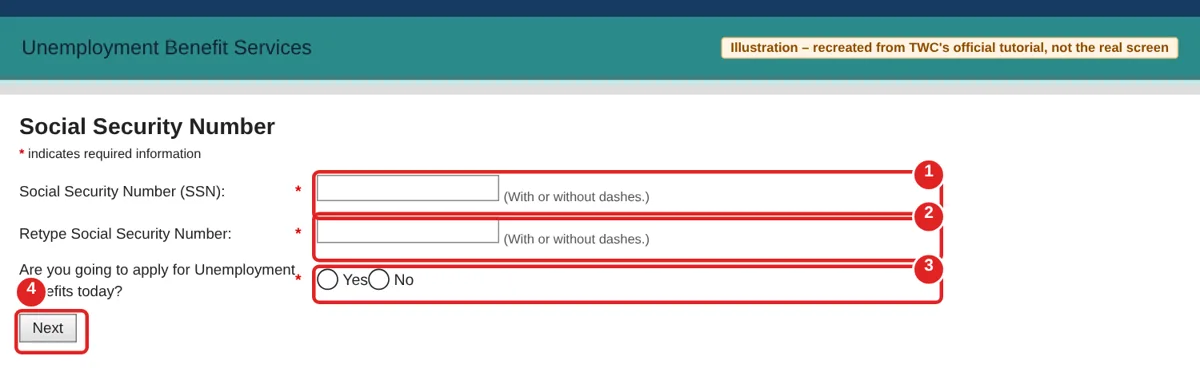
| # | Box | What to enter | Example | Watch out |
|---|---|---|---|---|
| ① | Social Security Number (SSN) | Your 9-digit SSN | — | With or without dashes |
| ② | Retype Social Security Number | The same number again | — | — |
| ③ | Are you going to apply for Unemployment Benefits today? | Pick Yes | Yes | — |
| ④ | Next | Click to continue | — | — |
Answer the initial questions
These yes-or-no questions decide whether you can finish online. Answer them honestly — most people answer No to most of them and keep going.
These answers decide whether you can apply online or have to call the Tele-Center.
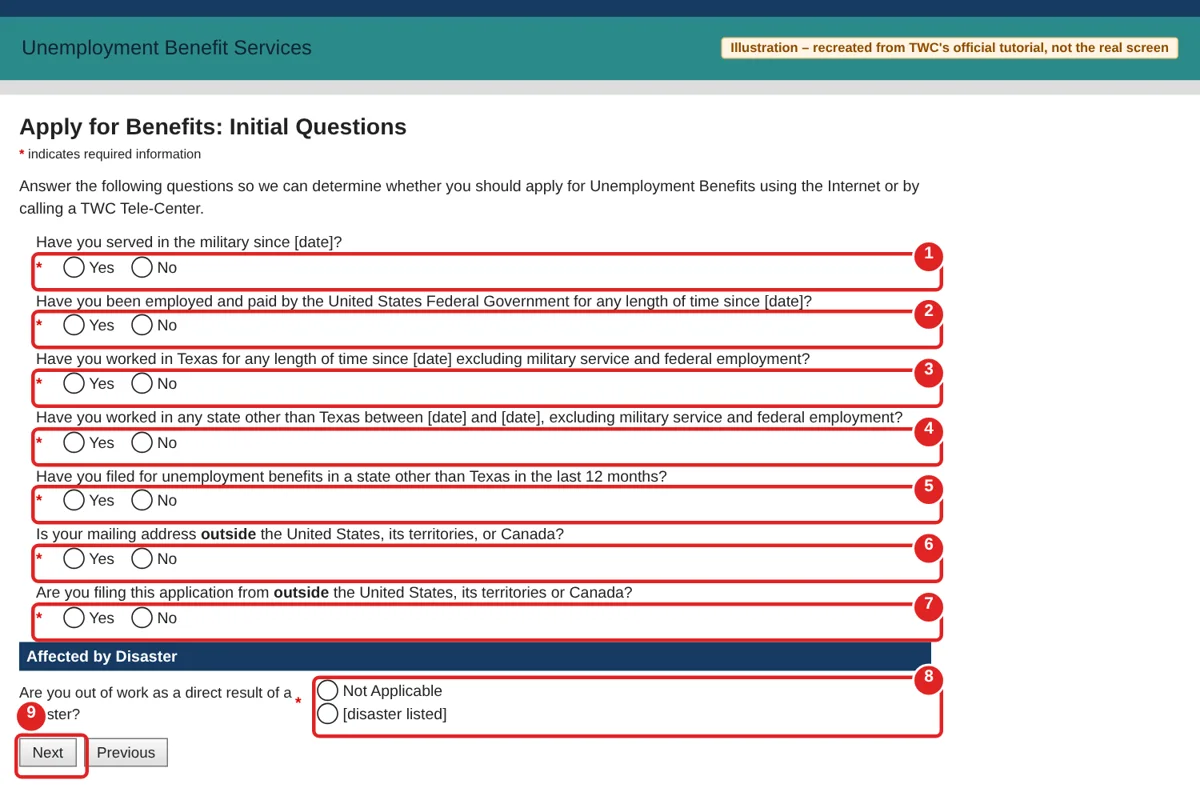
| # | Question | What to pick | Watch out |
|---|---|---|---|
| ① | Served in the military since [date]? | Yes or No | — |
| ② | Employed and paid by the U.S. federal government since [date]? | Yes or No | Examples: U.S. Postal Service, Census Bureau |
| ③ | Worked in Texas since [date]? | Yes or No | Don’t count military or federal jobs here |
| ④ | Worked in another state between [dates]? | Yes or No | Don’t count military or federal jobs here |
| ⑤ | Filed for unemployment in another state in the last 12 months? | Yes or No | — |
| ⑥ | Mailing address outside the U.S., its territories or Canada? | Yes or No | — |
| ⑦ | Filing from outside the U.S., its territories or Canada? | Yes or No | — |
| ⑧ | Out of work as a direct result of a disaster? | Usually Not Applicable | Pick a disaster only if it’s why you lost work |
| ⑨ | Next | Click to continue | Some answers may tell you to call the Tele-Center instead |
Enter your personal information and dates worked
This screen is about you and your last job dates. Have your driver license or ID card next to you so you can copy the number exactly.
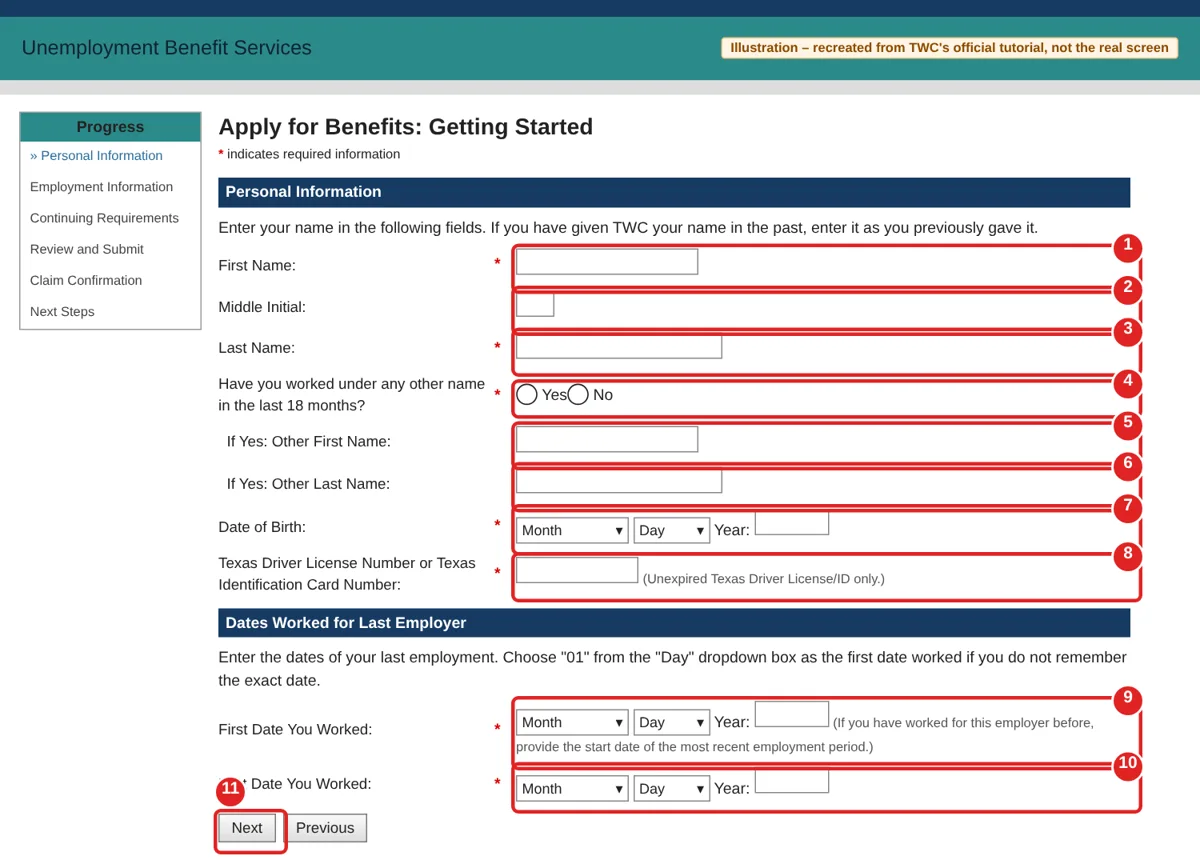
| # | Box | What to enter | Example | Watch out |
|---|---|---|---|---|
| ① | First Name | Your first name | John | If you gave TWC your name before, enter it the same way |
| ② | Middle Initial | Optional | Q | — |
| ③ | Last Name | Your last name | Sample | — |
| ④ | Worked under any other name in the last 18 months? | Yes or No | No | Example: a maiden name |
| ⑤ | If Yes: Other First Name | Only if you answered Yes | — | — |
| ⑥ | If Yes: Other Last Name | Only if you answered Yes | — | — |
| ⑦ | Date of Birth | Pick month and day, type the year | — | — |
| ⑧ | Texas Driver License or Texas ID Card Number | The number on your card | — | Unexpired Texas license or ID only |
| ⑨ | First Date You Worked | Your first day at your last job | — | Worked there before? Use the start date of your most recent period. Don’t remember the day? Pick “01” |
| ⑩ | Last Date You Worked | Your last day at that job | — | — |
| ⑪ | Next | Click to continue | — | More personal questions follow (contact, citizenship, union, pension and more) |
Choose whether to withhold federal tax
This one’s a choice, not a rule. Unemployment money is taxable, so some people like having tax taken out now instead of owing later.
This choice is at the end of the Personal Information section.
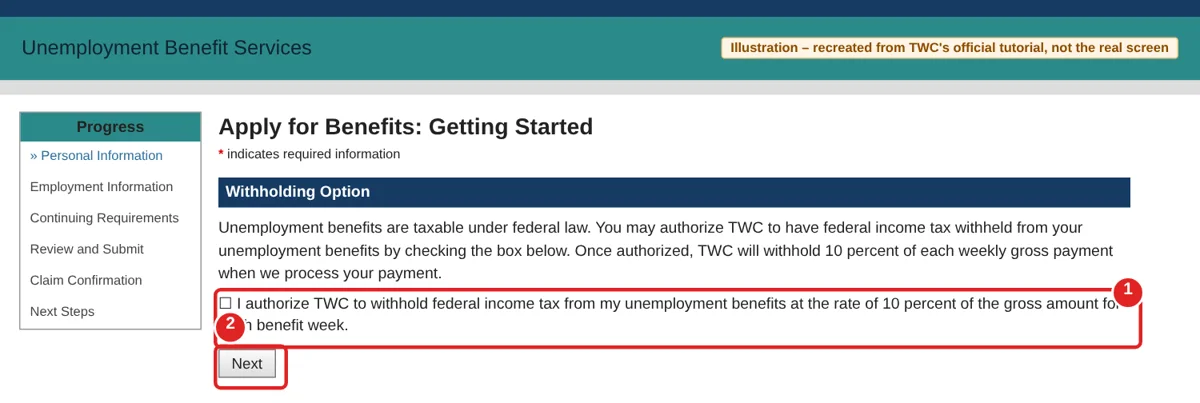
| # | Box | What to do | Watch out |
|---|---|---|---|
| ① | I authorize TWC to withhold federal income tax… | Check it if you want 10 percent of each payment held back for federal income tax | Unemployment benefits are taxable income, and you must report them on your federal tax return. If you don’t check it, TWC withholds nothing |
| ② | Next | Click to continue | — |
Tell TWC about your last employer
Next, tell TWC about your last employer. TWC has to let them know you applied, so pick them from the list if you can.
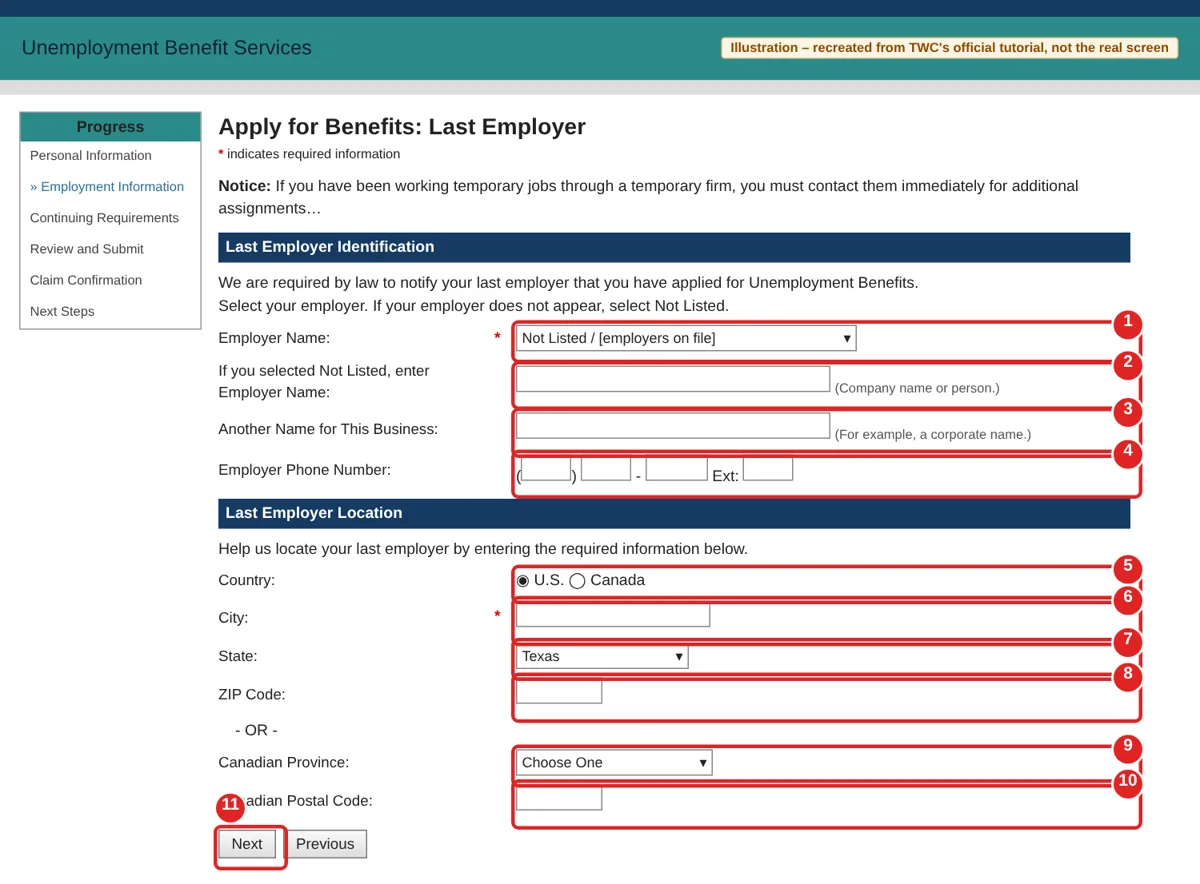
| # | Box | What to enter | Watch out |
|---|---|---|---|
| ① | Employer Name | Pick your last employer from the list | Not there? Pick Not Listed |
| ② | If you selected Not Listed, enter Employer Name | The company or person you worked for | — |
| ③ | Another Name for This Business | Optional, for example the corporate name | — |
| ④ | Employer Phone Number | Their phone number | — |
| ⑤ | Country | U.S. or Canada | — |
| ⑥ | City | Where your employer is | Required |
| ⑦ | State | Their state | — |
| ⑧ | ZIP Code | Their ZIP code | — |
| ⑨ | Canadian Province | Only if your employer is in Canada | — |
| ⑩ | Canadian Postal Code | Only if your employer is in Canada | — |
| ⑪ | Next | Click to continue | Next you’ll answer about your job, dates, pay and the reason you’re no longer working |
Create your four-digit PIN
Now create a four-digit PIN. Think of it like your signature — you’ll need it to request payments by phone, so write it down somewhere safe.
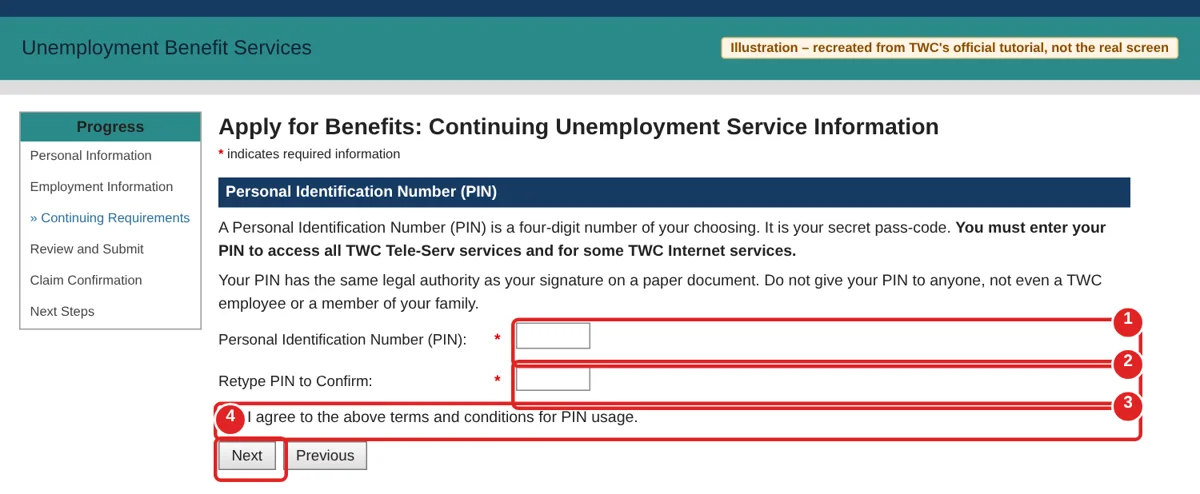
| # | Box | What to enter | Watch out |
|---|---|---|---|
| ① | Personal Identification Number (PIN) | A four-digit number you choose | You need it for Tele-Serv payment requests. Write it down somewhere safe |
| ② | Retype PIN to Confirm | The same four digits | — |
| ③ | I agree to the above terms… | Check the box | Your PIN has the same legal authority as your signature. Never give it to anyone, not even a TWC employee |
| ④ | Next | Click to continue | — |
Choose how to get paid
Here’s where you pick how your money arrives. The debit card is the default; choose No only if you’d rather have it go to your bank.
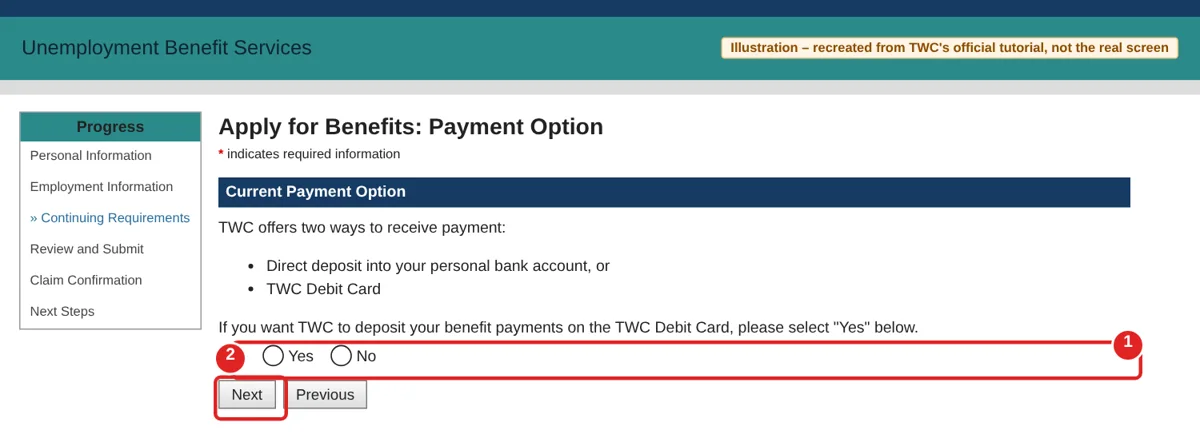
| # | Box | What to pick | Watch out |
|---|---|---|---|
| ① | Do you want payments on the TWC Debit Card? | Yes for the debit card. No if you want direct deposit to your bank | For new claimants the debit card is the default. Applied before? The screen shows your current method — check it and change it if needed |
| ② | Next | Click to continue | If you picked No, you’ll see the direct deposit screen next |
(Only for direct deposit) Enter your bank details
Only see this screen if you chose direct deposit. Grab a paper check — the numbers you need are printed along the bottom.
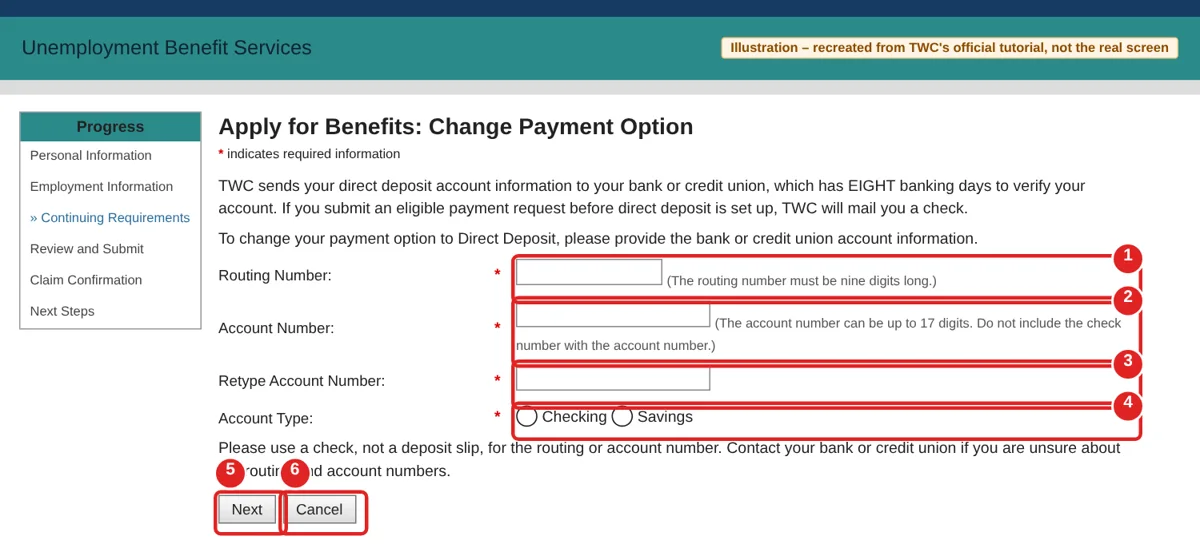
| # | Box | What to enter | Watch out |
|---|---|---|---|
| ① | Routing Number | Your bank’s 9-digit routing number | Copy it from a check, not a deposit slip. The first two digits must be 01–12 or 21–32 |
| ② | Account Number | Your account number | Up to 17 digits. Don’t include the check number |
| ③ | Retype Account Number | The same number again | — |
| ④ | Account Type | Checking or Savings | — |
| ⑤ | Next | Click to continue | Your bank has eight banking days to verify. Until then, TWC may mail you a check. If your bank can’t confirm the account, TWC pays you by debit card instead |
| ⑥ | Cancel | Leaves this screen without setting up direct deposit | — |
Sign up for electronic letters
TWC can send most of its letters to an online inbox instead of the mail. It’s faster, but keep an eye on your mailbox too.
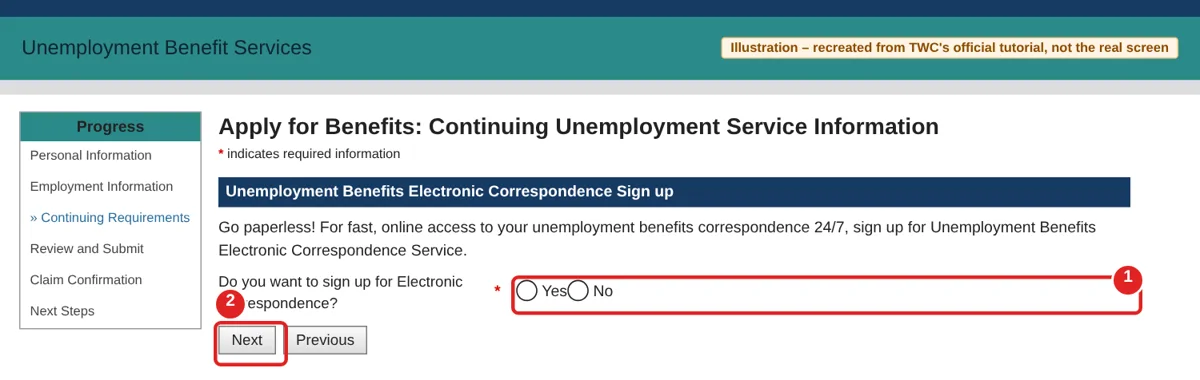
| # | Box | What to pick | Watch out |
|---|---|---|---|
| ① | Do you want to sign up for Electronic Correspondence? | Yes to get most letters in an online inbox | Keep checking your mailbox too — some letters still come only by mail |
| ② | Next | Click to continue | — |
Review and submit
You’re almost done. Read every section slowly — once you submit, you can’t change your answers online.
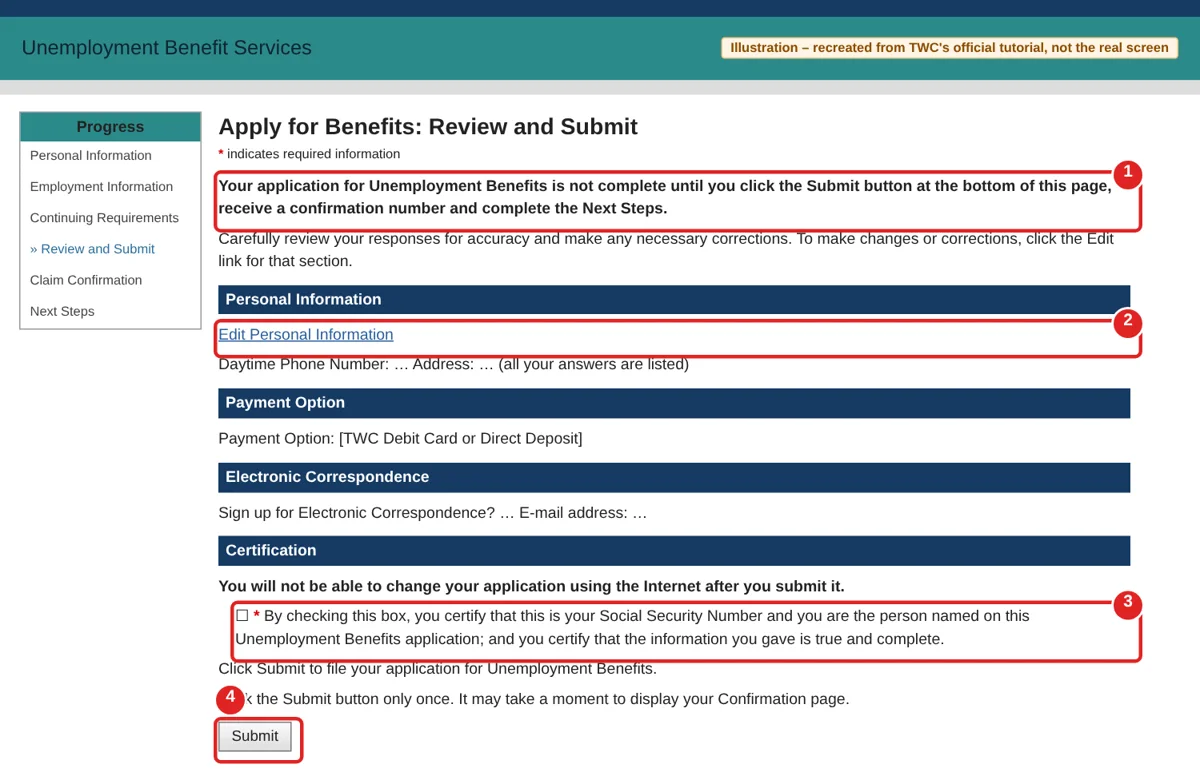
| # | What you see | What to do | Watch out |
|---|---|---|---|
| ① | “Your application… is not complete until you click the Submit button” | Read every section | — |
| ② | Edit links | Click to fix anything that’s wrong | You can’t change your application online after you submit |
| ③ | Certification checkbox | Check it to certify this is your SSN, you’re the person named, and your information is true and complete | Required — you can’t submit without it |
| ④ | Submit | Click once when everything is correct | It may take a moment to show your confirmation. Need a change after submitting? Call the Tele-Center at 800-939-6631 the next business day |
Save your claim confirmation
You did it — your application is in. Don’t close the window yet, though. There are two more things to do on this screen.
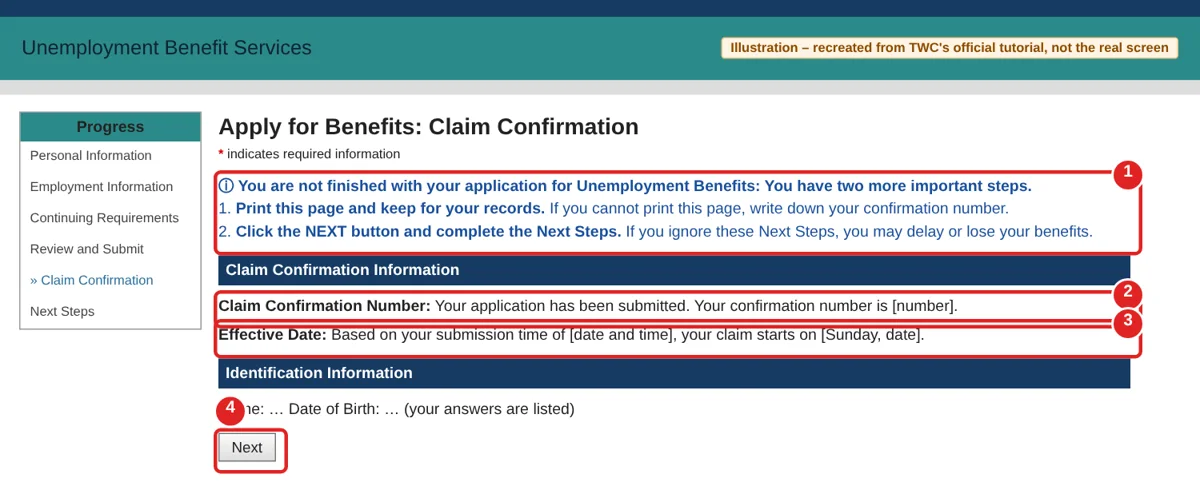
| # | What you see | What to do | Watch out |
|---|---|---|---|
| ① | “You are not finished…” | Do both steps it lists | — |
| ② | Claim Confirmation Number | Print the page or write the number down | Free printers are available at Workforce Solutions offices |
| ③ | Effective Date | The date your claim starts (a Sunday) | — |
| ④ | Next | Click it and read the Next Steps | If you skip the Next Steps, you may delay or lose your benefits |
What happens next (TWC tutorial, June 2024 edition, checked Nov 3, 2026): register for work within three business days of applying — Texas residents register with WorkInTexas or in person at a Workforce Solutions office. Request payment on time, and read everything TWC sends you. It takes about four weeks from the day you apply to find out if you’re eligible. You can check your status in UBS or by calling Tele-Serv at 800-558-8321, Option 2.
How to request payment for unemployment in Texas
You must request payment to receive benefits.
| What | Details (TWC, checked Nov 3, 2026) |
|---|---|
| When | About one to two weeks after you apply, then every two weeks on your filing day |
| Missed your filing day? | Request payment Thursday through Saturday of the same week |
| Online | Log in to Unemployment Benefits Services and select Request a Payment. Available 24 hours a day |
| By phone (Tele-Serv, for payments) | Call 800-558-8321 and select Option 1. You’ll need your Social Security number and your four-digit PIN |
| Your first payment | Only one week, even though you asked for two — the first week is your waiting week |
Work search: what you need to do each week
Unless TWC tells you you’re exempt, you must register for work and search for work while you get benefits:
- Do at least the minimum number of work search activities each week. TWC tells you the number.
- Keep good records you can prove on a work search log, and give it to TWC if they ask.
- For help finding a job, TWC points you to WorkInTexas.com and local Workforce Solutions offices.
FAQ
How much is unemployment in Texas? Between $76 and $619 a week, depending on your past wages (TWC, checked Nov 3, 2026). Use the estimator in Step 1 for a rough number.
How long can I get unemployment in Texas? TWC caps your total, not the number of weeks. Your total is the smaller of 26 times your weekly amount or 27% of the wages in your base period, so at most you get 26 full weekly payments. Step 2 shows your estimated total.
Why was my first unemployment payment only one week? The first week of your claim is the waiting week. TWC holds it until you go back to full-time work or use up your benefits.
Forgot your TWC unemployment password? Use “Forgot Password?” or “Forgot User ID?” on the logon page. TWC asks you not to create a second account.
Can I apply for unemployment in Texas by phone? Yes. If you can’t apply online, call a Tele-Center at 800-939-6631 during regular business hours.
I worked in another state. Where do I apply? In the state where you worked.
Sources
All checked on November 3, 2026.
- Texas Workforce Commission, Apply for Unemployment Benefits
- Texas Workforce Commission, How to Apply for Unemployment Benefits Online (tutorial)
- Texas Workforce Commission, Request Benefit Payments
- Texas Workforce Commission, Eligibility & Benefit Amounts
- Texas Workforce Commission, Work Search
- Texas Workforce Commission, Unemployment Benefits Estimator and Unemployment Benefit Services
Update log
- Nov 3, 2026: First published.