Lost Your Job and Your Health Insurance? Here's How to Stay Covered
- Find the date your job coverage ends. You have 60 days from that date to sign up for a new plan, and you can apply up to 60 days before it ends.
- Know your main options: a Marketplace plan, COBRA (keeping your old plan), or Medicaid.
- Preview plans and prices, then apply and enroll on HealthCare.gov or your state’s site. The preview takes about 10 minutes. Every screen is shown below, from the first ZIP code box to uploading your proof.
Losing your job is hard enough without worrying about a doctor’s bill. The good news: losing job-based coverage opens a special sign-up window, even outside the usual sign-up season. HealthCare.gov calls this a Special Enrollment Period. It applies even if you quit or were fired. It usually doesn’t apply if you canceled your job plan yourself or stopped paying for it.
Money tight while you look for work? See Can’t Pay Rent This Month? for help with housing costs.
Lost your job? Your health insurance options
| Option | What it is | Good to know |
|---|---|---|
| Marketplace plan (HealthCare.gov or your state’s site) | A plan you buy yourself | You may qualify for a tax credit that lowers your monthly bill, based on your income |
| COBRA | Keep your old job plan for a while | Usually lasts up to 18 months. You usually pay the full price yourself, plus a small fee |
| Medicaid | Free or low-cost coverage from your state | You can apply any time of year |
| A family member’s job plan | Join a spouse’s or parent’s plan | Ask their employer’s HR office how and when you can join |
How long do I have to sign up?
| What | When |
|---|---|
| Sign up after losing job coverage | Within 60 days of losing it. You can also apply up to 60 days before it ends |
| When your new Marketplace plan starts | The first day of the next month, if you pick a plan by the end of the month your job coverage ends |
| Open Enrollment (the yearly sign-up season) for 2027 plans | November 1, 2026 to January 15, 2027 (HealthCare.gov states; state sites may differ) |
| To start a 2027 plan on January 1 | Sign up by December 15 (HealthCare.gov) |
HealthCare.gov’s own example: if your job coverage ends on March 7 and you pick a plan by March 31, your new coverage can start April 1. (Checked November 3, 2026.)
Which website do you use?
Most states use HealthCare.gov. Some states run their own site.
| State | Where to sign up |
|---|---|
| California | Covered California |
| New York | NY State of Health |
| Texas | HealthCare.gov |
| Florida | HealthCare.gov |
| Other states | Check the federal list of state-run marketplaces |
Live in California, New York or another state with its own site? The screens below won’t match. Go to your state’s site and look for its plan preview or “shop and compare” tool.
What to have ready
How to preview plans and prices on HealthCare.gov
This uses HealthCare.gov’s free preview tool. You don’t need an account, and nothing is submitted — it only shows estimated prices. Our screenshots use a sample person: one 35-year-old in Dallas, Texas with an expected income of $30,000. Your numbers will be different.
Enter your ZIP code
Let’s start by telling HealthCare.gov where you live. Plans and prices depend on your county, so this is the first thing it asks. You won’t be asked for your name or any account here.
Go to healthcare.gov/see-plans.
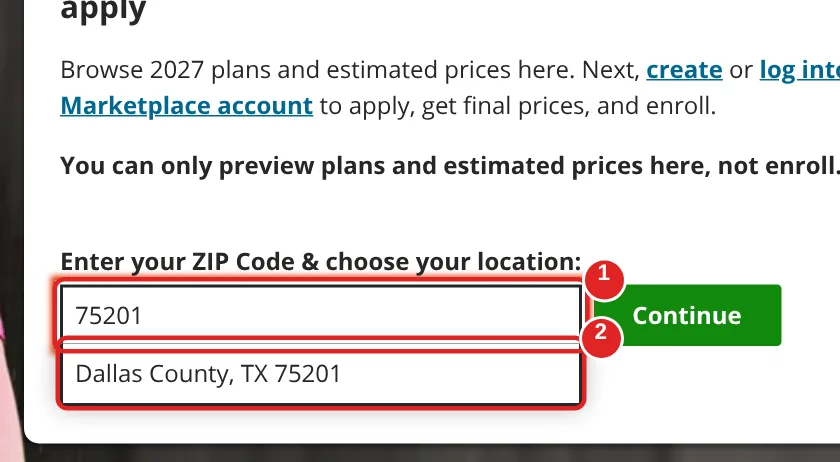
| # | Box | What to do | Example | Watch out |
|---|---|---|---|---|
| ① | ZIP Code | Type your home ZIP code | 75201 | Use the ZIP where you live |
| ② | Location suggestion | Click your county in the list that appears | Dallas County, TX 75201 | Some ZIP codes cover more than one county — pick yours |
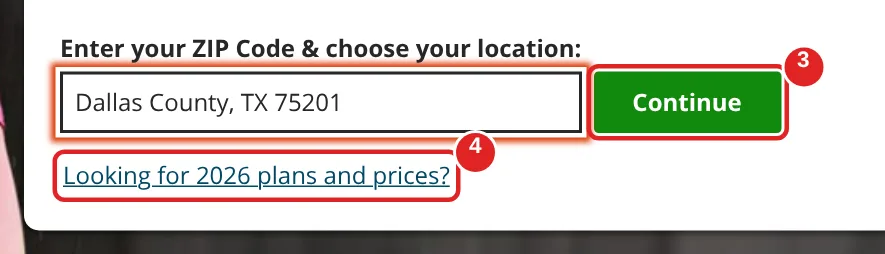
| # | Box | What to do | Example | Watch out |
|---|---|---|---|---|
| ③ | Continue | Click Continue to preview next year’s (2027) plans | — | Changing the ZIP later restarts your search |
| ④ | Looking for 2026 plans and prices? | Click this instead if your job coverage ends before the end of 2026 | — | The next screens work the same way |
Start the household questions
Now you’ll see the three parts of the preview. It might be tempting to skip straight to plans, but answering a few questions first shows you prices with your savings already counted.
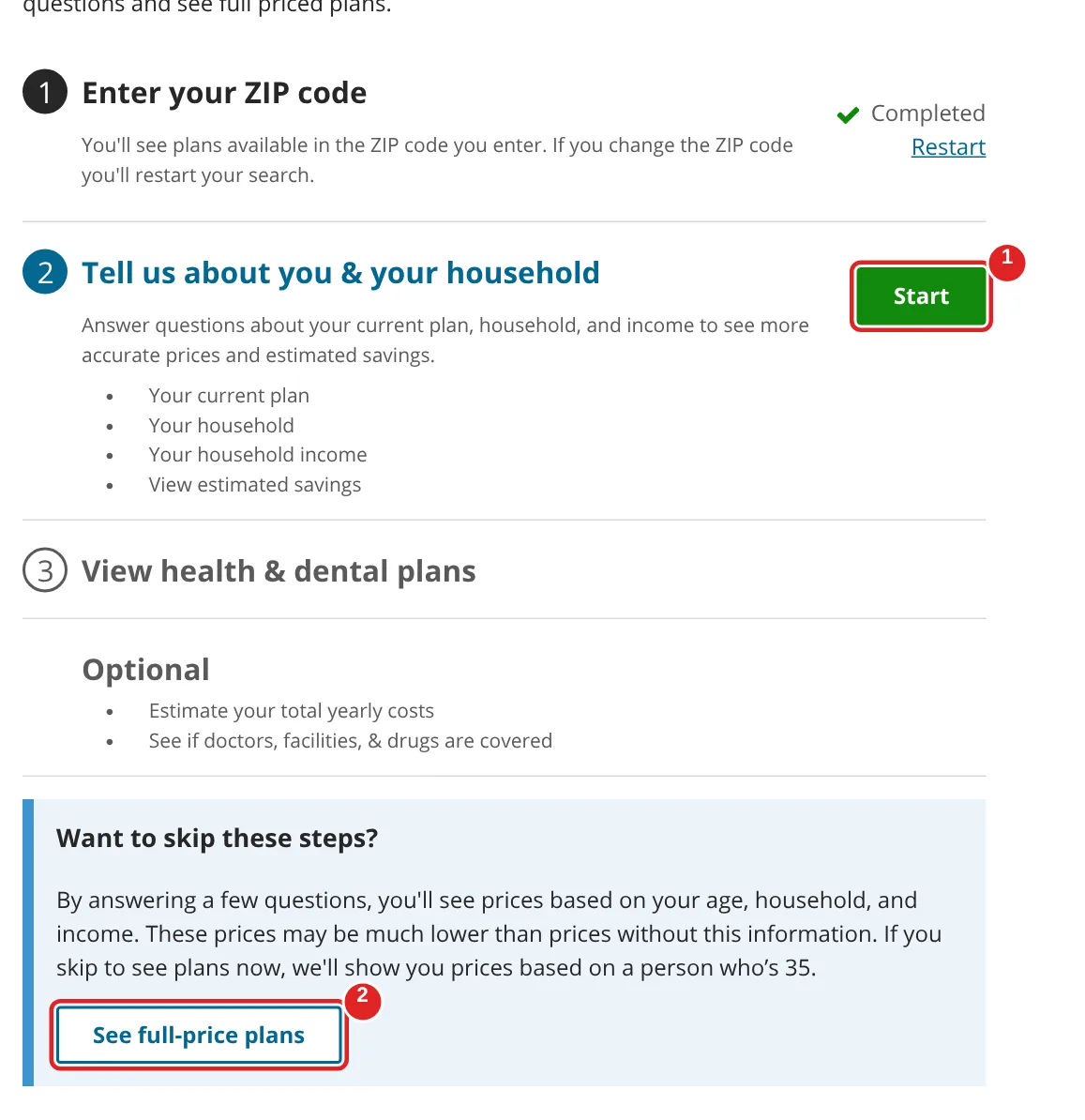
| # | Box | What to do | Example | Watch out |
|---|---|---|---|---|
| ① | Start | Click Start to answer a few questions | — | This gives you prices with your estimated savings |
| ② | See full-price plans | Skip this button | — | It shows prices without any savings, which can look much higher |
Skip the Plan ID question
This screen is only for people who already have a Marketplace plan. Since your coverage came from your job, you can skip it.
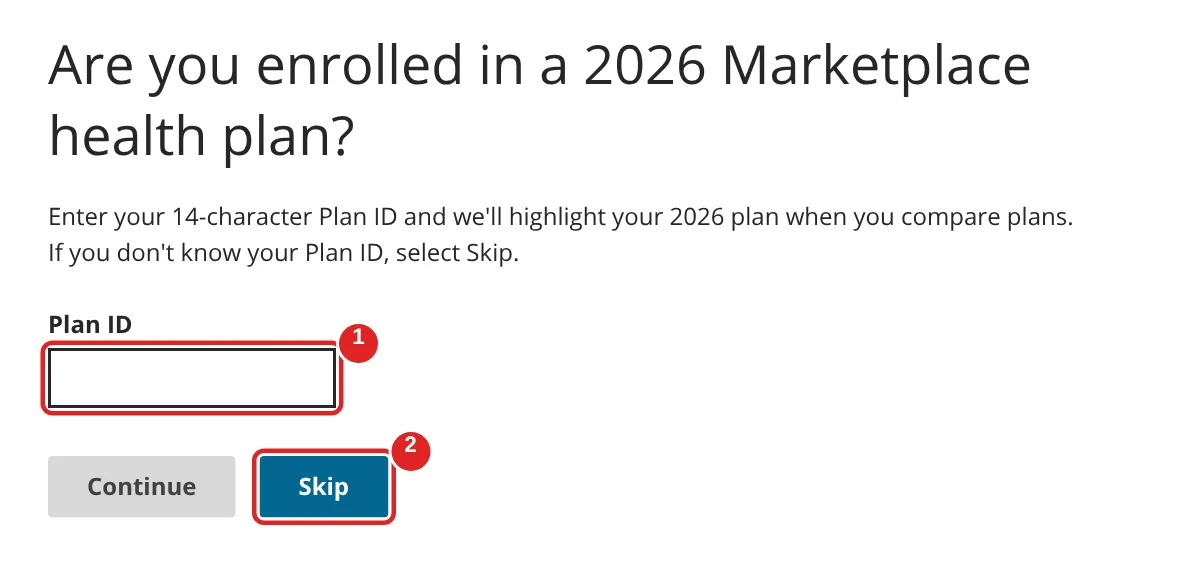
| # | Box | What to do | Example | Watch out |
|---|---|---|---|---|
| ① | Plan ID | Leave it empty | — | This is only for people who already have a Marketplace plan |
| ② | Skip | Click Skip | — | Your job plan’s ID doesn’t go here |
Tell it who's in your household
Next, it wants to know who’s in your household. Think of everyone on your tax return, not just the people who need coverage.
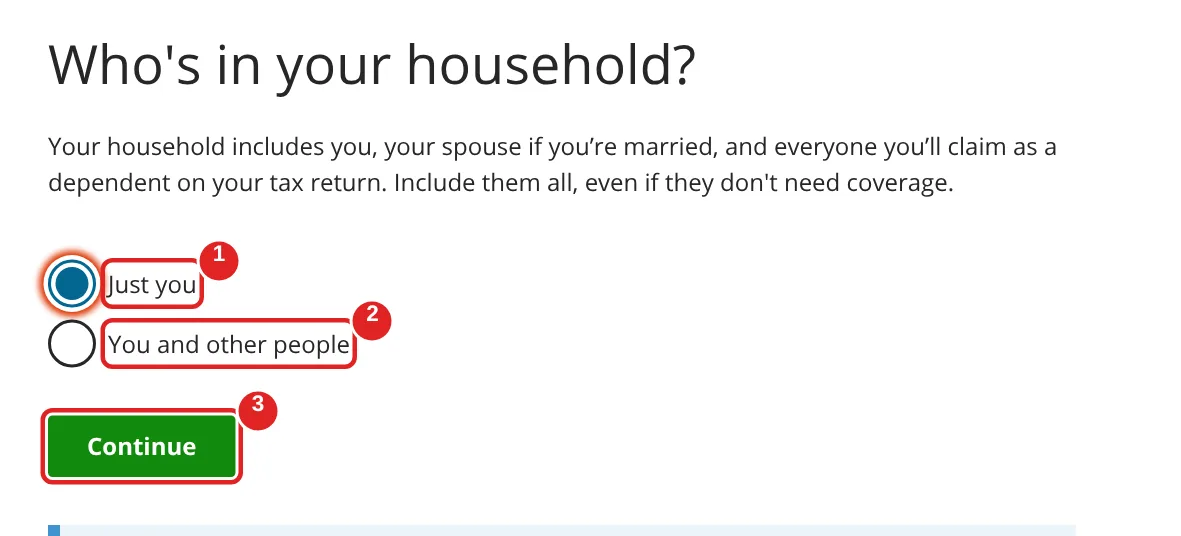
| # | Box | What to do | Example | Watch out |
|---|---|---|---|---|
| ① | Just you | Pick this if nobody but you is on your tax return | Just you | — |
| ② | You and other people | Pick this if you have a spouse or dependents | — | Include everyone on your tax return, even if they don’t need coverage |
| ③ | Continue | Click Continue | — | — |
Tell it about you
Now a few quick questions about you. Your age changes the price, so be accurate. The checkboxes are optional, but they help the estimate.
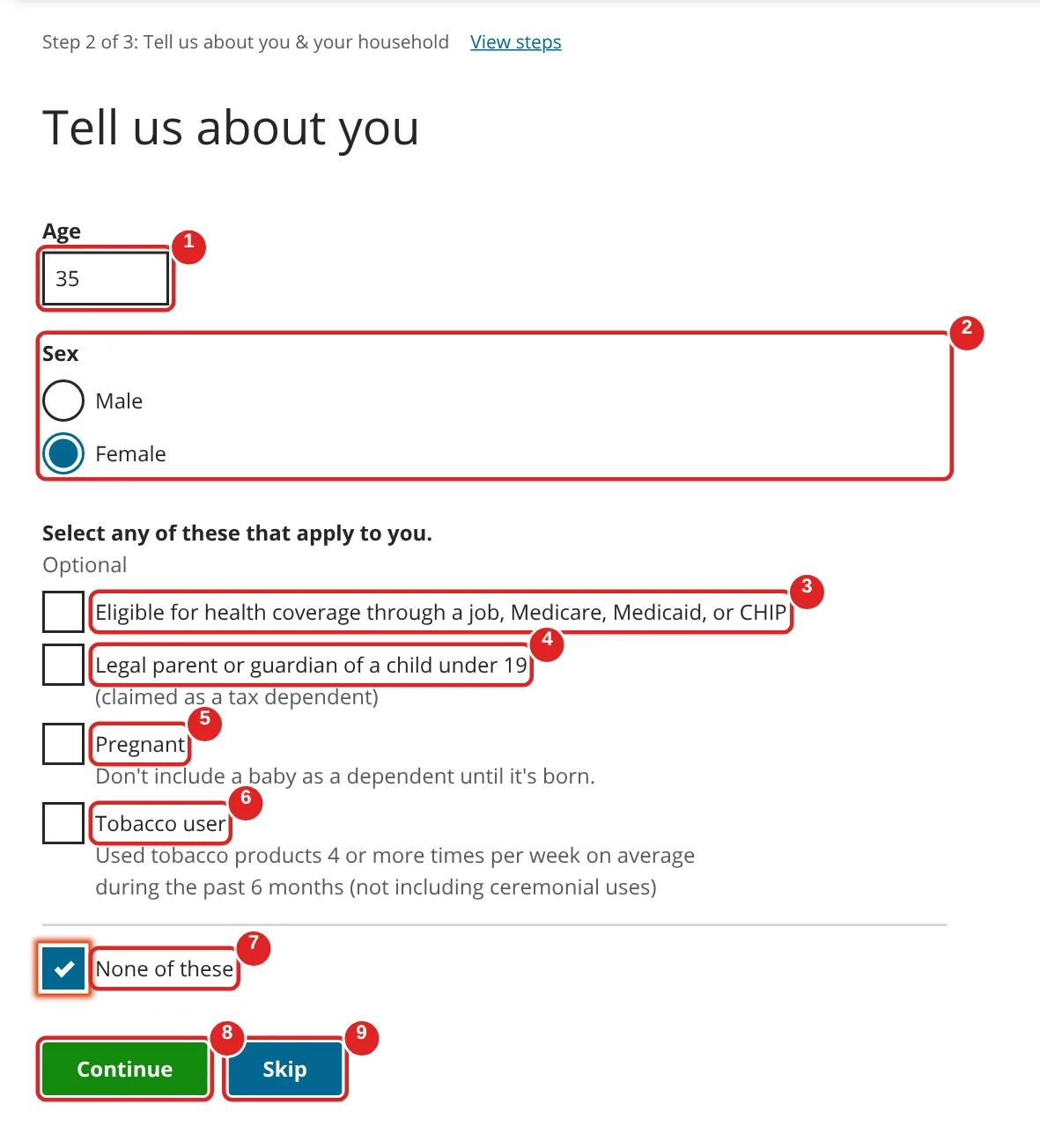
| # | Box | What to do | Example | Watch out |
|---|---|---|---|---|
| ① | Age | Type your age | 35 | Age changes the price |
| ② | Sex | Pick one | — | — |
| ③ | Eligible for health coverage through a job, Medicare, Medicaid, or CHIP | Check if you can get coverage through any job (including a spouse’s or parent’s), Medicare, Medicaid or CHIP (health coverage for children) | Unchecked | Not sure? Try the preview both ways and compare |
| ④ | Legal parent or guardian of a child under 19 | Check if you claim a child under 19 on your taxes | — | — |
| ⑤ | Pregnant | Check if you are pregnant | — | Don’t add the baby until it’s born |
| ⑥ | Tobacco user | Check if you used tobacco 4 or more times a week, on average, in the past 6 months | — | This can raise the price |
| ⑦ | None of these | Check if none of ③ to ⑥ apply | Checked | — |
| ⑧ | Continue | Click Continue | — | — |
| ⑨ | Skip | Don’t use | — | Skipping gives less accurate prices |
Confirm your household
Quick check: make sure everyone you listed is here and their details look right. You can still add a spouse or a dependent.
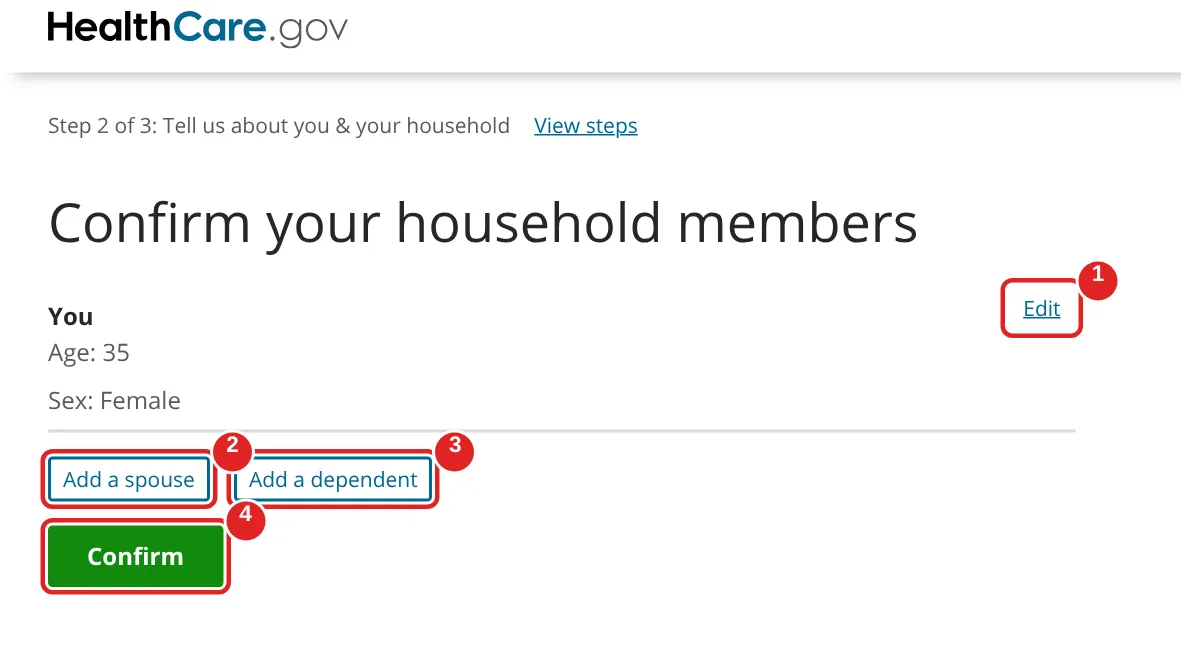
| # | Box | What to do | Example | Watch out |
|---|---|---|---|---|
| ① | Edit | Click if your age or details are wrong | — | — |
| ② | Add a spouse | Click to add your spouse | — | — |
| ③ | Add a dependent | Click to add each child or other dependent | — | — |
| ④ | Confirm | Click Confirm when everyone is listed | — | — |
Enter your expected income
This is the question that matters most for your price. Your savings are based on your expected income, so take a moment and make your best guess.
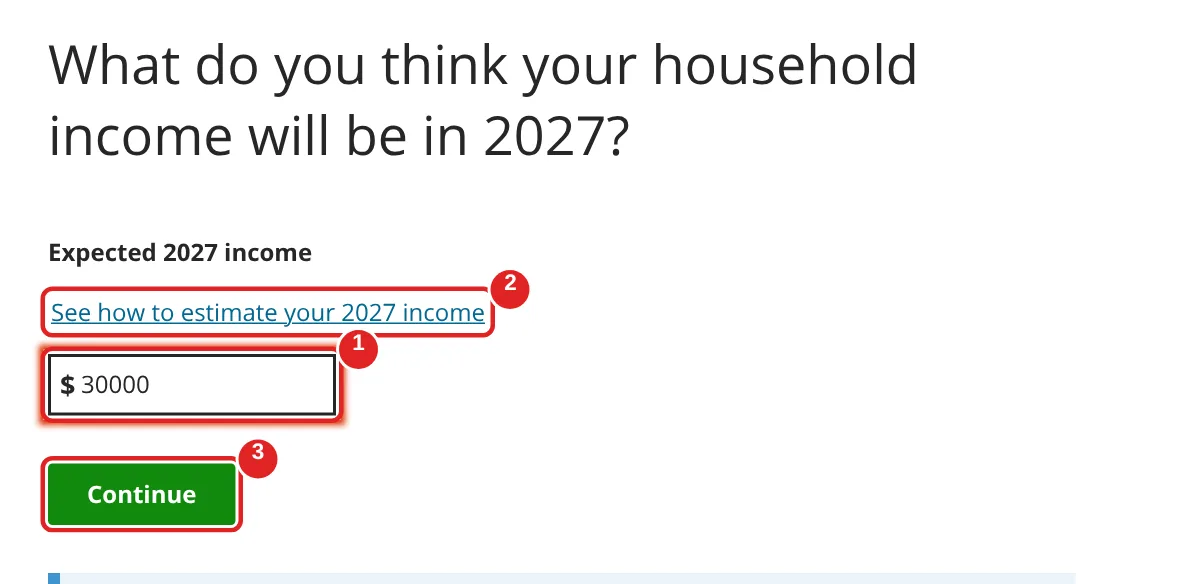
| # | Box | What to do | Example | Watch out |
|---|---|---|---|---|
| ① | Expected income | Type your best guess of your household’s total income for the plan year (2026 or 2027, as shown on the screen) | 30000 | Numbers only |
| ② | See how to estimate your income | Click if you’re not sure what counts as income | — | Your real application uses this number to set your tax credit, so be as accurate as you can |
| ③ | Continue | Click Continue | — | — |
See your estimated savings
Here’s your estimated savings. This is the part most people are surprised by — your monthly price could be a lot lower than you expect.
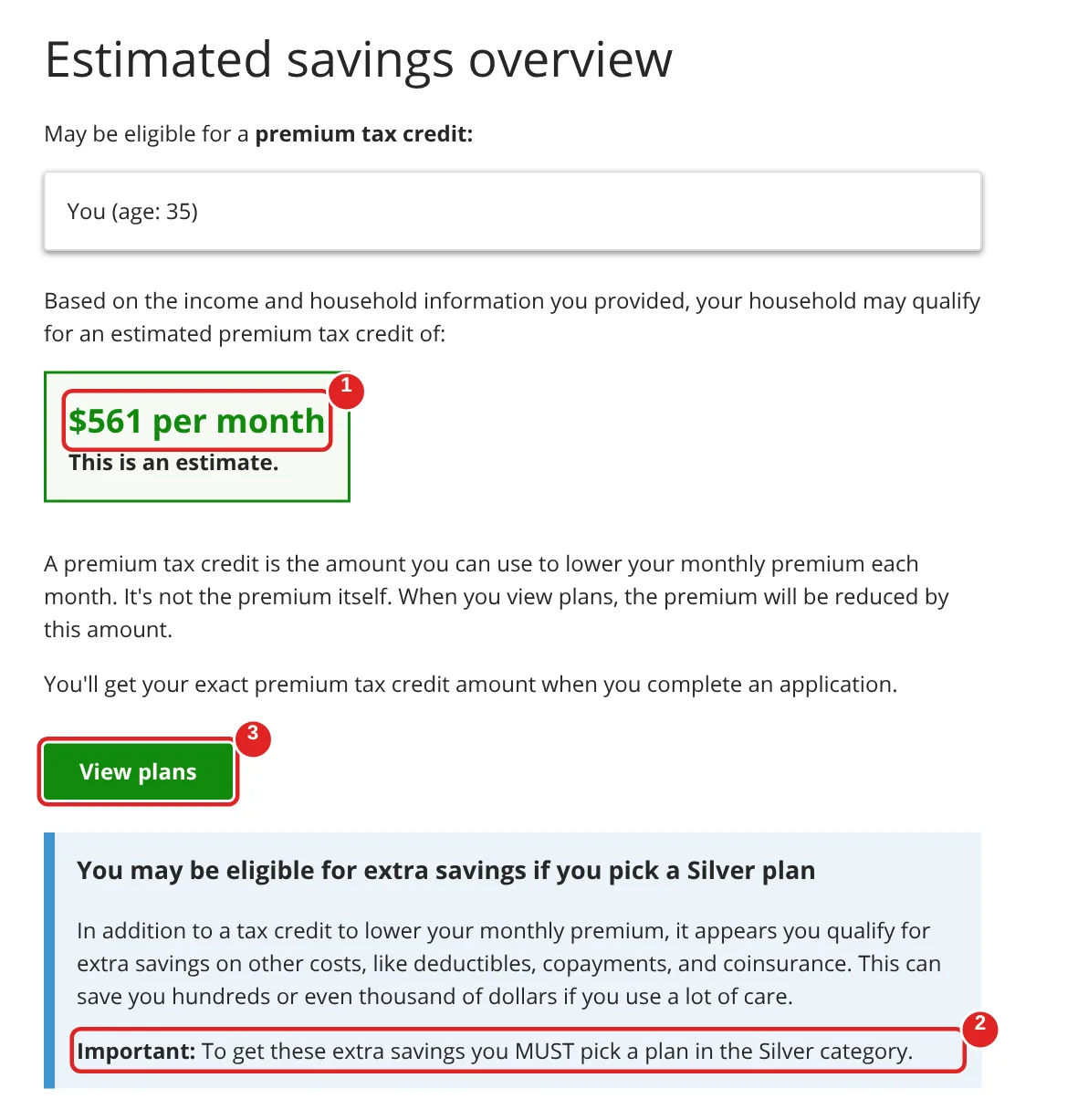
| # | What you see | What it means | What to do |
|---|---|---|---|
| ① | Estimated tax credit per month | How much your premium (your monthly bill) could drop | Note it — your exact amount comes when you apply |
| ② | “MUST pick a plan in the Silver category” | Extra savings on your deductible (what you pay before the plan pays) and copays apply only if you pick a Silver plan | If you see this, look closely at Silver plans |
| ③ | View plans | Opens the list of plans | Click View plans |
Compare plans
Almost there. Now you can compare real plans in your area. Don’t just look at the monthly price — check what you’d pay when you actually use care.
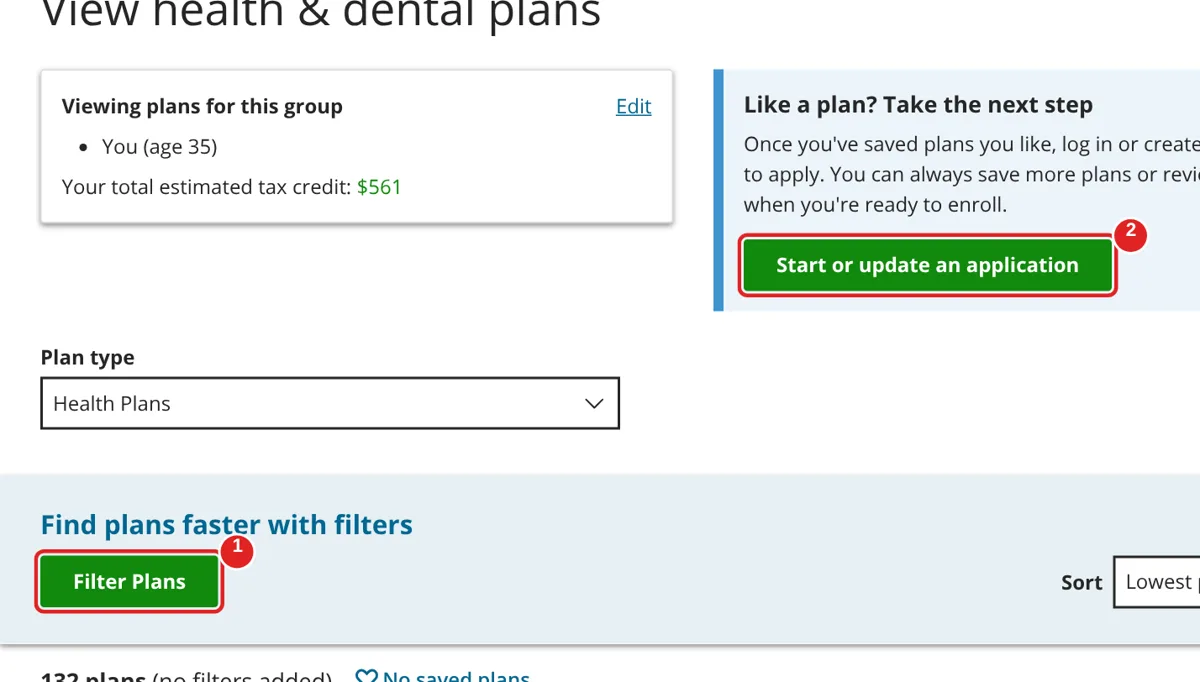
| # | Box | What to do | Example | Watch out |
|---|---|---|---|---|
| ① | Filter Plans | Narrow the list, for example to Silver plans or a price range | — | — |
| ② | Start or update an application | Click when you’re ready to apply | — | You’ll need to create an account to apply and enroll |
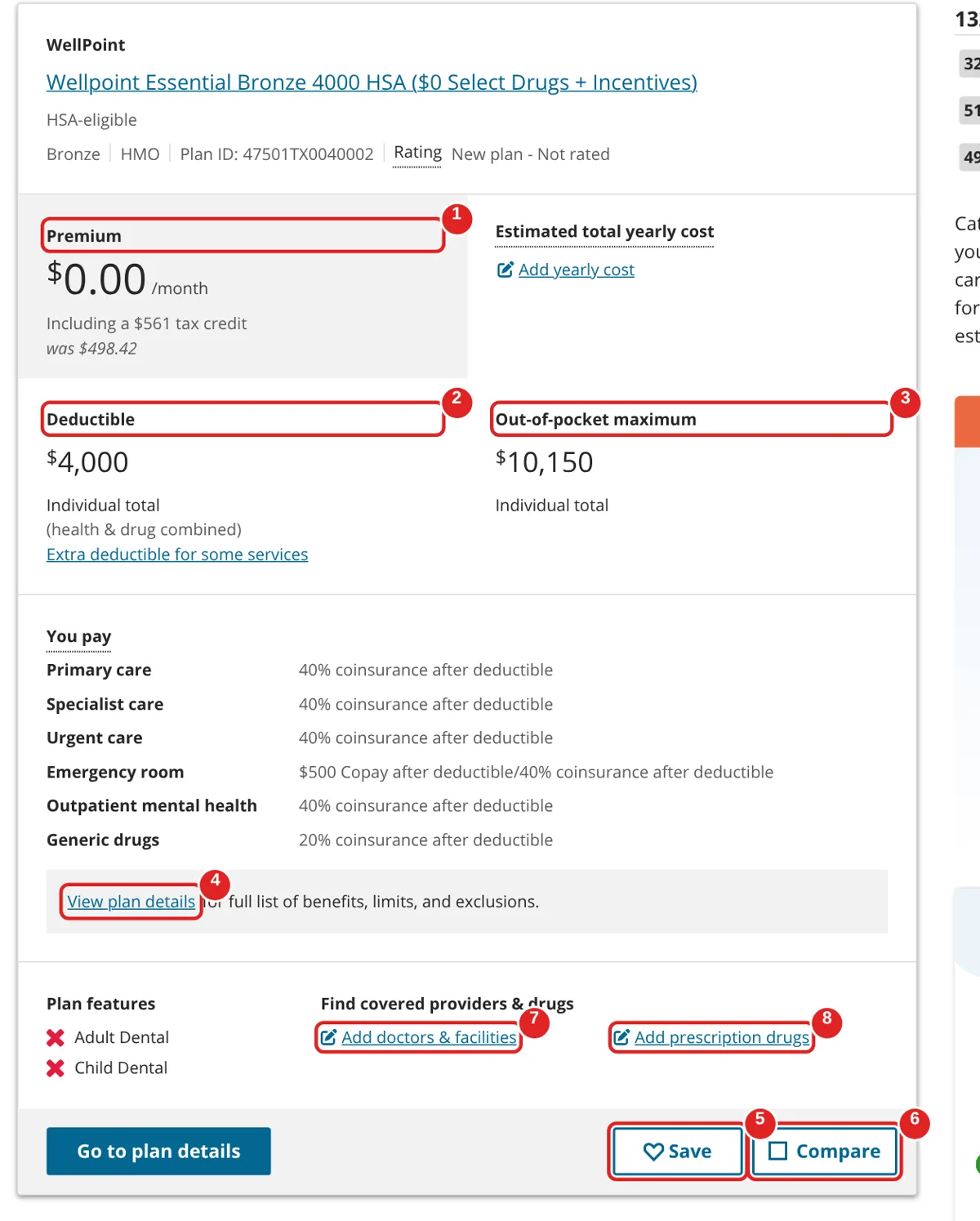
| # | Box | What it means | What to do | Watch out |
|---|---|---|---|---|
| ① | Premium | What you pay each month, after your estimated tax credit | Compare with your COBRA price | The lowest premium isn’t always the cheapest overall |
| ② | Deductible | What you pay for care before the plan starts sharing costs | Lower is better if you see doctors often | — |
| ③ | Out-of-pocket maximum | The most you’d pay in a year for covered care | Check this if you have a health condition | — |
| ④ | View plan details | Full list of benefits and costs | Open it for plans you like | — |
| ⑤ | Save | Keeps the plan on your list | Save 2–3 plans you like | — |
| ⑥ | Compare | Puts plans side by side | Check a few boxes, then compare | — |
| ⑦ | Add doctors & facilities | Checks if your doctors are in the plan | Add your doctors before you choose | — |
| ⑧ | Add prescription drugs | Checks if your medicines are covered | Add the drugs you take | — |
How to apply and enroll on HealthCare.gov
Found a plan you like? Now you’ll make an account, fill out the application, and pick your plan for real. This part takes longer than the preview, so give yourself some quiet time and keep your coverage-end letter nearby.
About the screens below. Steps 10 and 11 are real HealthCare.gov screens we captured on November 3, 2026, with a sample name and nothing submitted. From Step 12 on, you need a real account and Social Security number, so we recreated those screens from official CMS training material for application assisters (2017–2021) and HealthCare.gov’s 2025 upload instructions. The questions and their order follow that material. The current screens may look different, use slightly different words, or show extra questions. Your dates, ID numbers and dollar amounts will be filled in for you.
Create your HealthCare.gov account
First, an account. Pick your state, then set up your login. Write down your security answers exactly as you type them — you’ll need all three if you ever get locked out.
Go to healthcare.gov/create-account, or click Start or update an application from Step 9.
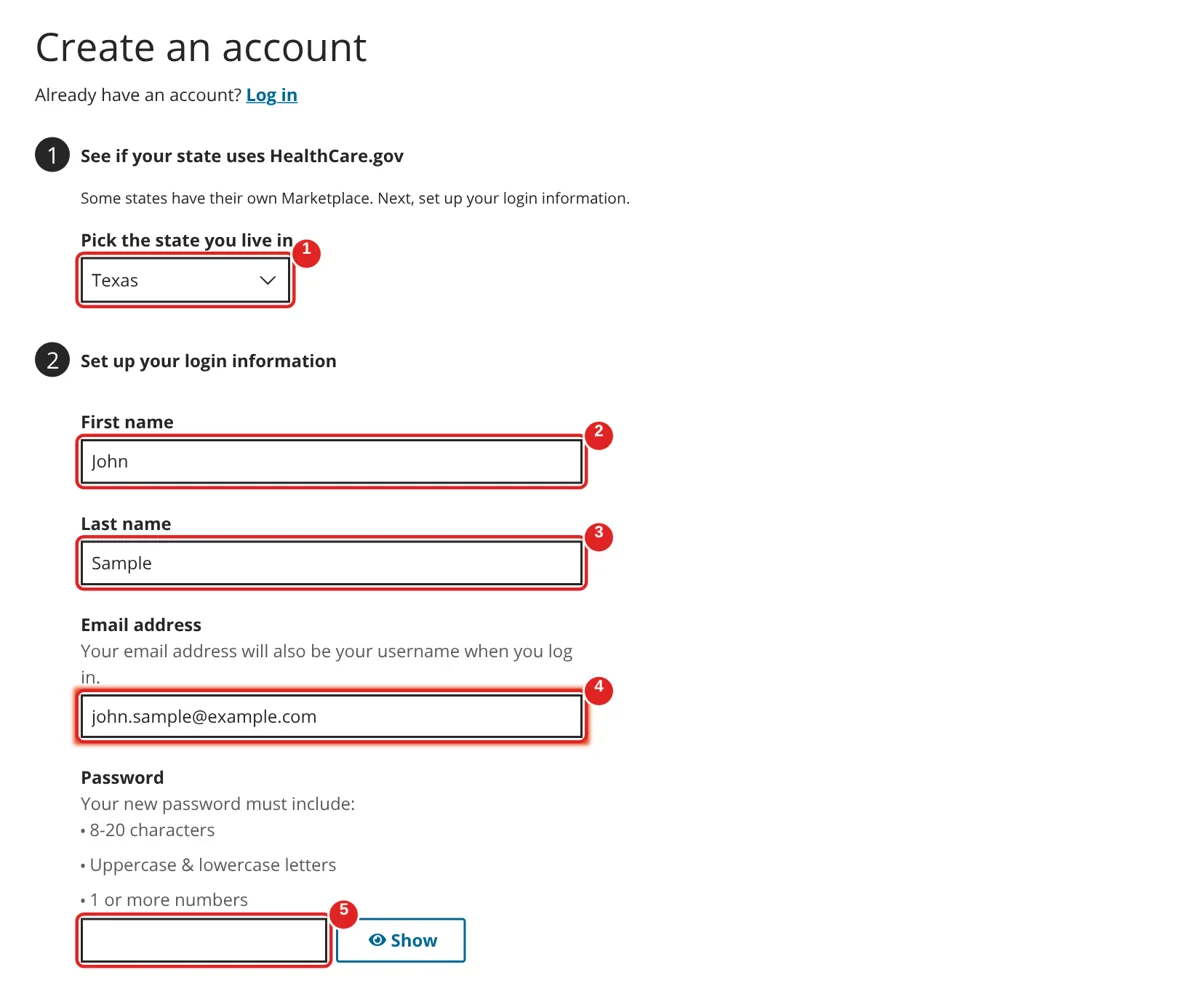
| # | Box | What to do | Example | Watch out |
|---|---|---|---|---|
| ① | Pick the state you live in | Choose your state | Texas | If your state runs its own site (like California), you’ll see a link to it instead |
| ② | First name | Your first name | John | — |
| ③ | Last name | Your last name | Sample | — |
| ④ | Email address | An email you check often | john.sample@example.com | This also becomes your username |
| ⑤ | Password | Make a password | — | 8–20 characters, upper- and lowercase letters, and at least 1 number. Click Show to check it |
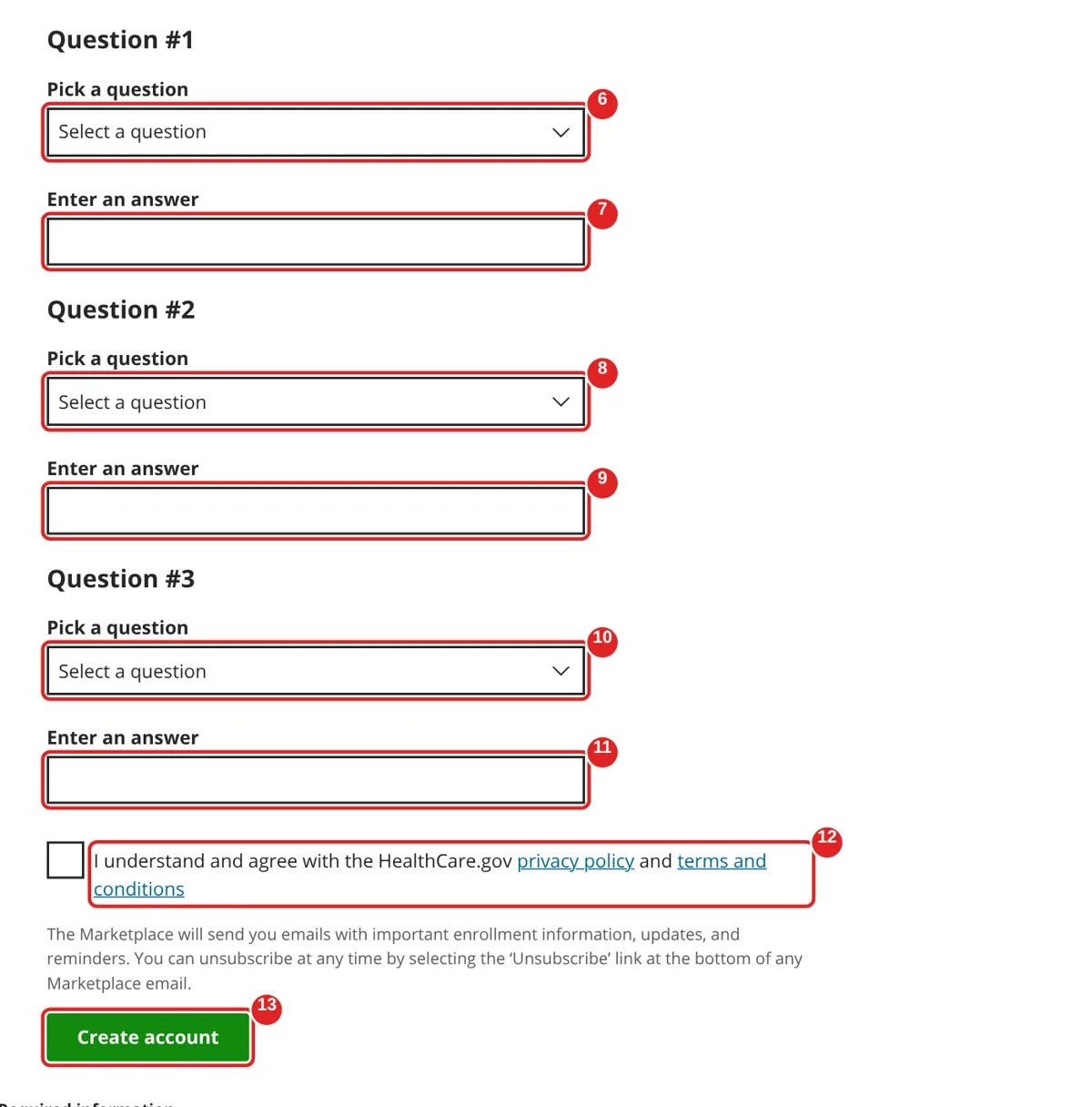
| # | Box | What to do | Example | Watch out |
|---|---|---|---|---|
| ⑥ | Question #1: Pick a question | Choose a question from the list | What is the name of your favorite pet? | Pick ones you’ll answer the same way years from now |
| ⑦ | Enter an answer | Type your answer | — | 1–30 characters. Letters, numbers, spaces and ’ . - only |
| ⑧ | Question #2: Pick a question | Choose a different question | — | — |
| ⑨ | Enter an answer | Type your answer | — | — |
| ⑩ | Question #3: Pick a question | Choose a third question | — | — |
| ⑪ | Enter an answer | Type your answer | — | — |
| ⑫ | I understand and agree… | Check the box after reading the privacy policy and terms | Checked | The Marketplace will email you about your enrollment |
| ⑬ | Create account | Click Create account | — | — |
If HealthCare.gov asks you to confirm your email, open the message it sends and click the link in it before you log in.
Log in
Account done. Now log in with the email and password you just made. If you’re on a shared or library computer, remember to log out and close the browser when you finish.
Go to healthcare.gov/login.
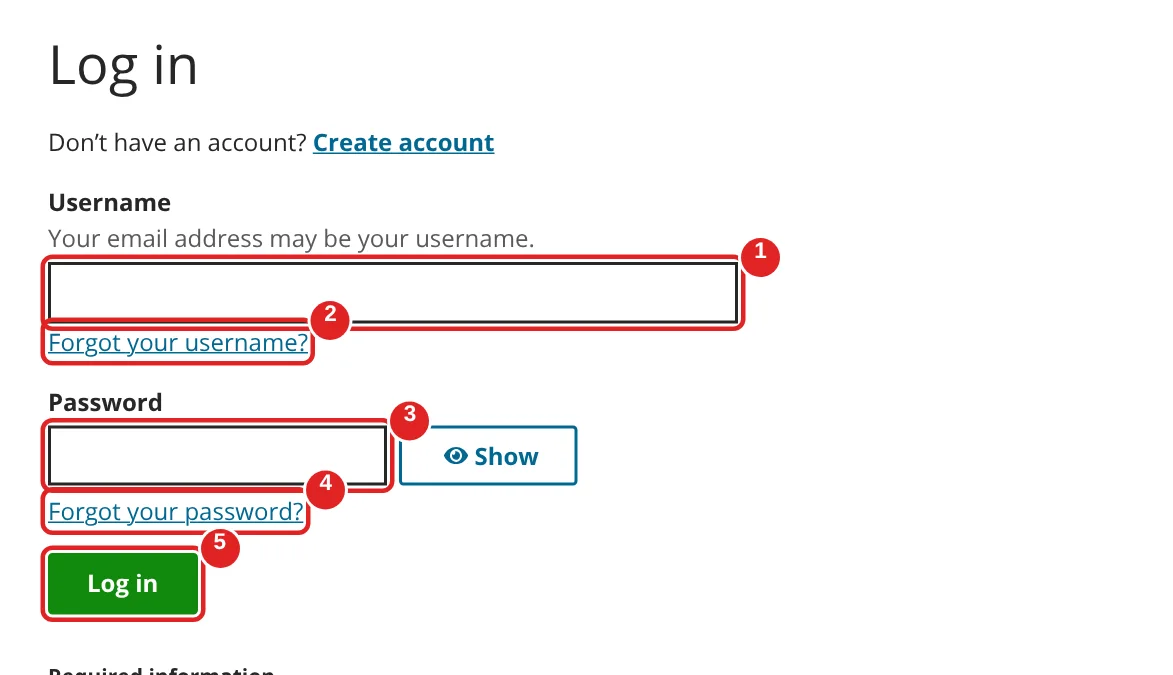
| # | Box | What to do | Example | Watch out |
|---|---|---|---|---|
| ① | Username | Type the email you signed up with | john.sample@example.com | — |
| ② | Forgot your username? | Click only if you can’t remember it | — | — |
| ③ | Password | Type your password | — | — |
| ④ | Forgot your password? | Click only if you need to reset it | — | You’ll answer your security questions |
| ⑤ | Log in | Click Log in | — | — |
Once you’re in, start a new application for your state. Pick the year your new plan will start: it starts the first day of the month after your job plan ends. Start date in 2026? Use the 2026 application. January 1, 2027? Use 2027. A 2026 plan only runs through December 31, so also pick a 2027 plan during Open Enrollment (by January 15, 2027).
Verify your identity
Before you apply, HealthCare.gov checks that you’re really you. This protects you — it stops someone else from applying in your name. Have your Social Security number ready.
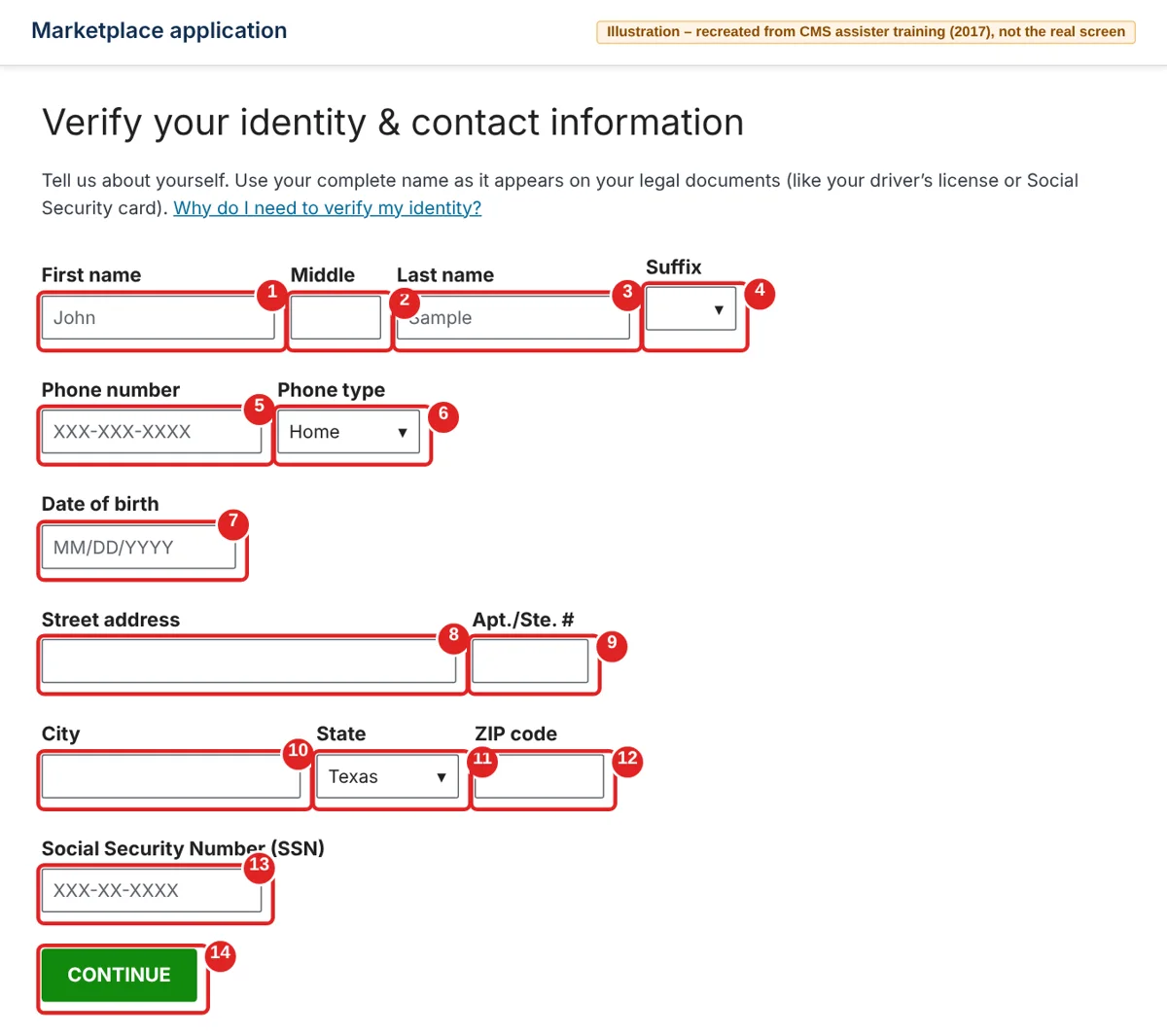
| # | Box | What to do | Example | Watch out |
|---|---|---|---|---|
| ① | First name | Your legal first name | John | Use your name exactly as on your driver’s license or Social Security card |
| ② | Middle | Your middle name, if you have one | — | — |
| ③ | Last name | Your legal last name | Sample | — |
| ④ | Suffix | Jr., Sr. and so on, if you use one | — | Leave blank if none |
| ⑤ | Phone number | Your phone number | Your mobile number | — |
| ⑥ | Phone type | Home, mobile and so on | Mobile | — |
| ⑦ | Date of birth | Your birthday | 03/04/1990 | Month first |
| ⑧ | Street address | Your home street address | 123 Main St | — |
| ⑨ | Apt./Ste. # | Your apartment number | — | Leave blank if none |
| ⑩ | City | Your city | Dallas | — |
| ⑪ | State | Your state | Texas | — |
| ⑫ | ZIP code | Your ZIP code | 75201 | — |
| ⑬ | Social Security Number (SSN) | Your 9-digit SSN | — | Double-check every digit |
| ⑭ | Continue | Click Continue | — | — |
Next, you’ll get a few multiple-choice questions based on your credit history, like past addresses or employers. “None of the above” can be the right answer. CMS says this check is only an inquiry and doesn’t affect your credit score.
Agree to the privacy terms
You’re verified. This page explains how your information is used. Read it, then check both boxes so you can start the actual application.
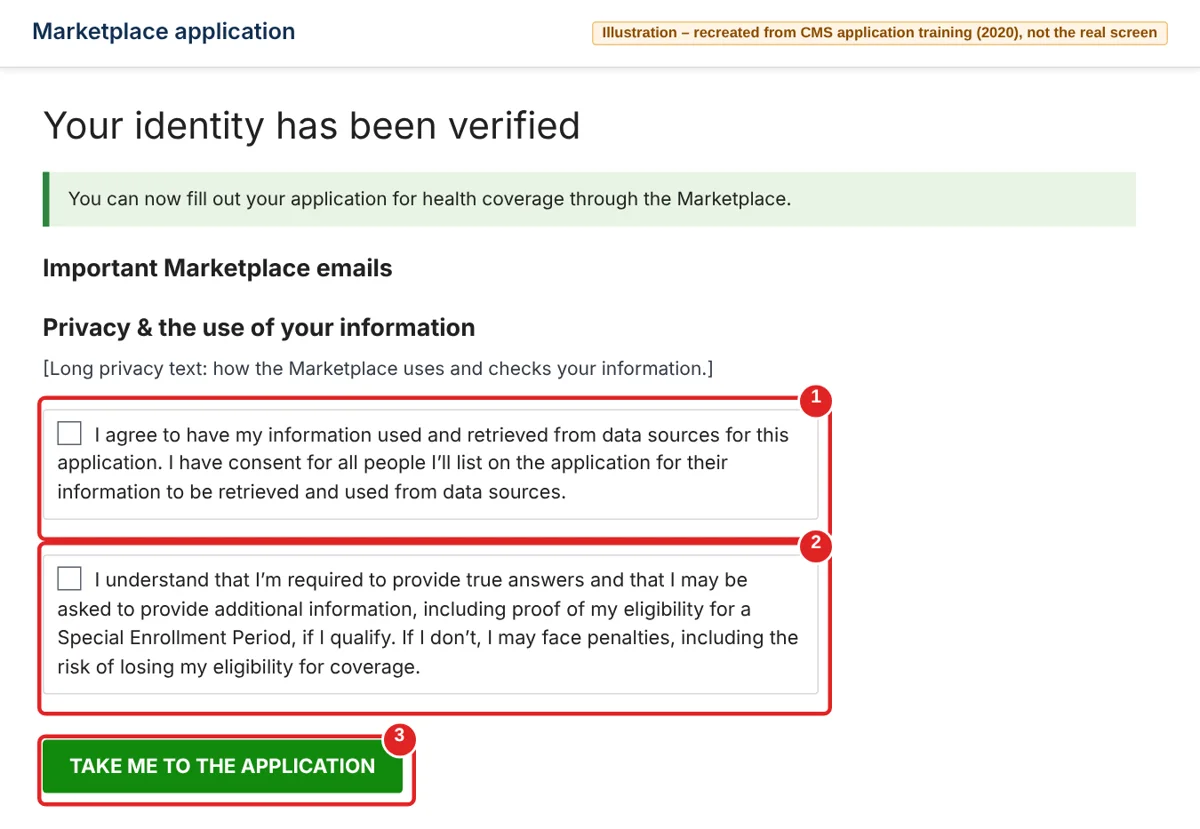
| # | Box | What to do | Example | Watch out |
|---|---|---|---|---|
| ① | I agree to have my information used… | Check it | Checked | You can’t apply without it |
| ② | I understand that I’m required to provide true answers… | Check it | Checked | This is where you agree you may need to send proof of your coverage loss |
| ③ | Take me to the application | Click it | — | — |
Answer the first household questions
This first screen sets up your application. Answer Yes to the last question — that’s how you get checked for the tax credit you saw in the preview.
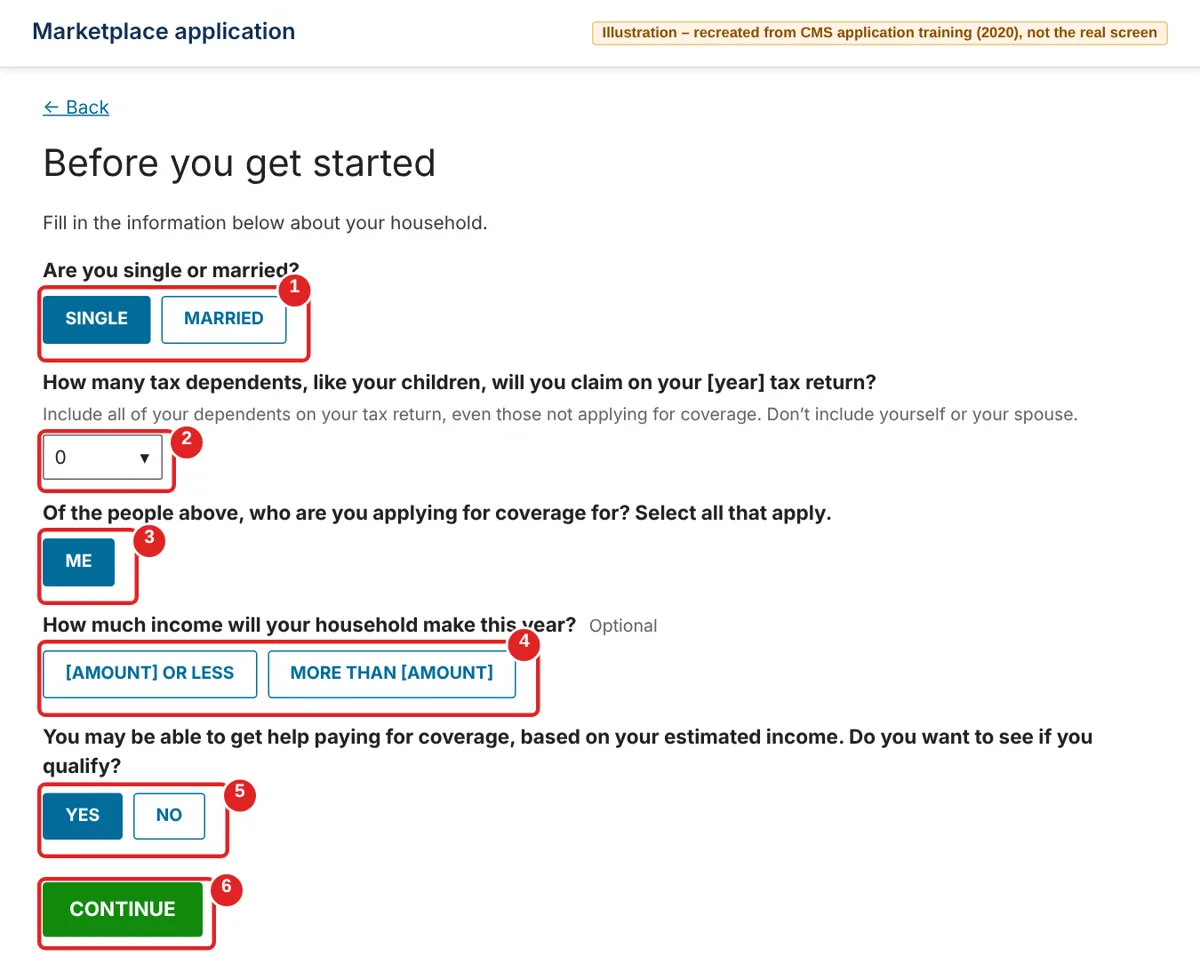
| # | Box | What to do | Example | Watch out |
|---|---|---|---|---|
| ① | Are you single or married? | Pick one | Single | — |
| ② | How many tax dependents… | Number of dependents you’ll claim on your tax return | 0 | Don’t count yourself or your spouse |
| ③ | Who are you applying for coverage for? | Pick everyone who needs a plan | Me | — |
| ④ | How much income will your household make this year? | Optional. Pick the range that fits | — | The amounts depend on your household and the year |
| ⑤ | Do you want to see if you qualify? | Pick Yes | Yes | No means you won’t get checked for savings |
| ⑥ | Continue | Click Continue | — | — |
Tell it about you and how to reach you
Now some basics about you. These screens go fast. Use your legal name and the address where you live now.
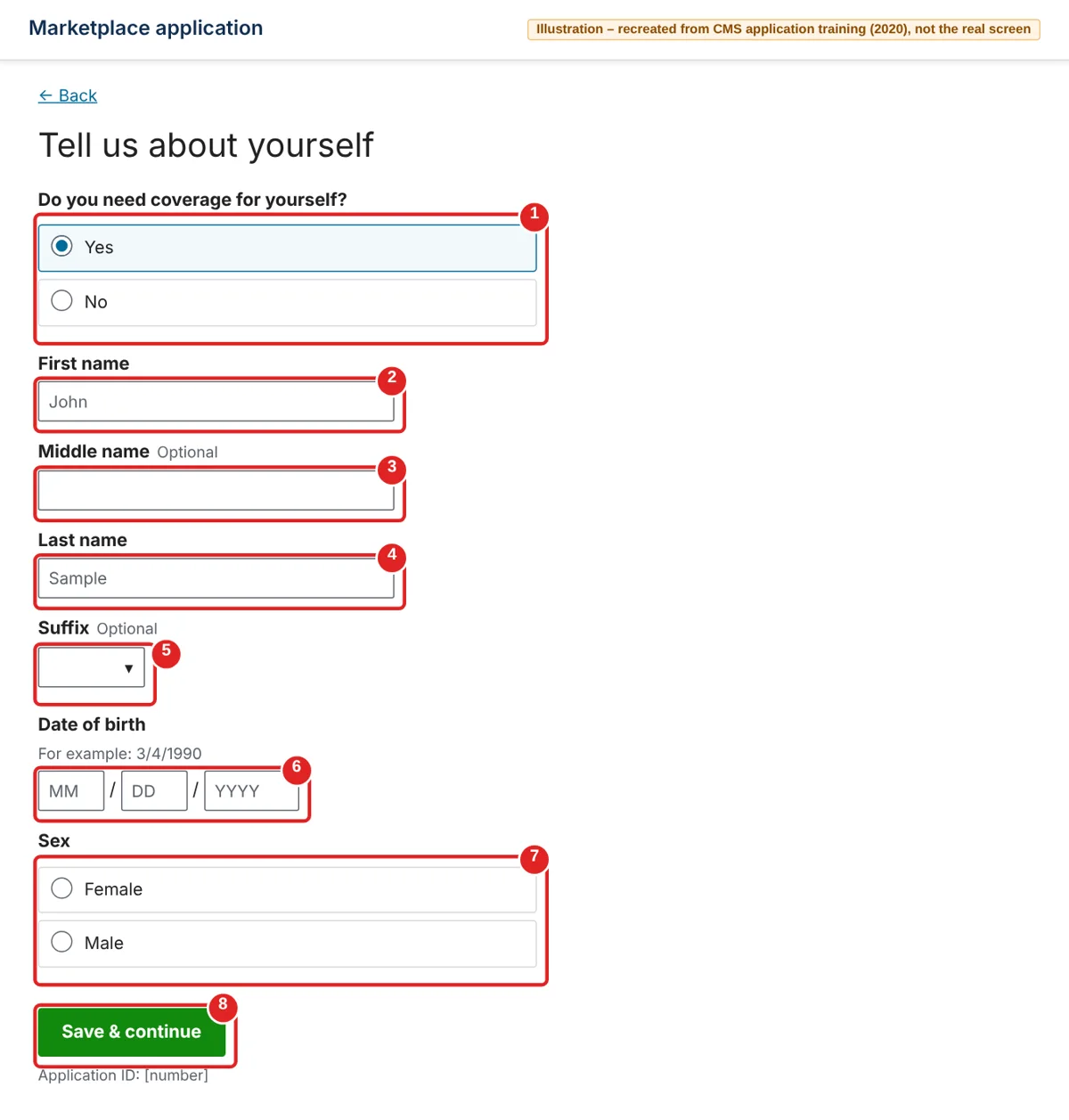
| # | Box | What to do | Example | Watch out |
|---|---|---|---|---|
| ① | Do you need coverage for yourself? | Pick Yes | Yes | — |
| ② | First name | Your first name | John | — |
| ③ | Middle name | Optional | — | — |
| ④ | Last name | Your last name | Sample | — |
| ⑤ | Suffix | Optional | — | — |
| ⑥ | Date of birth | Month / day / year | 3 / 4 / 1990 | — |
| ⑦ | Sex | Pick one | — | — |
| ⑧ | Save & continue | Click it | — | Each screen saves as you go |
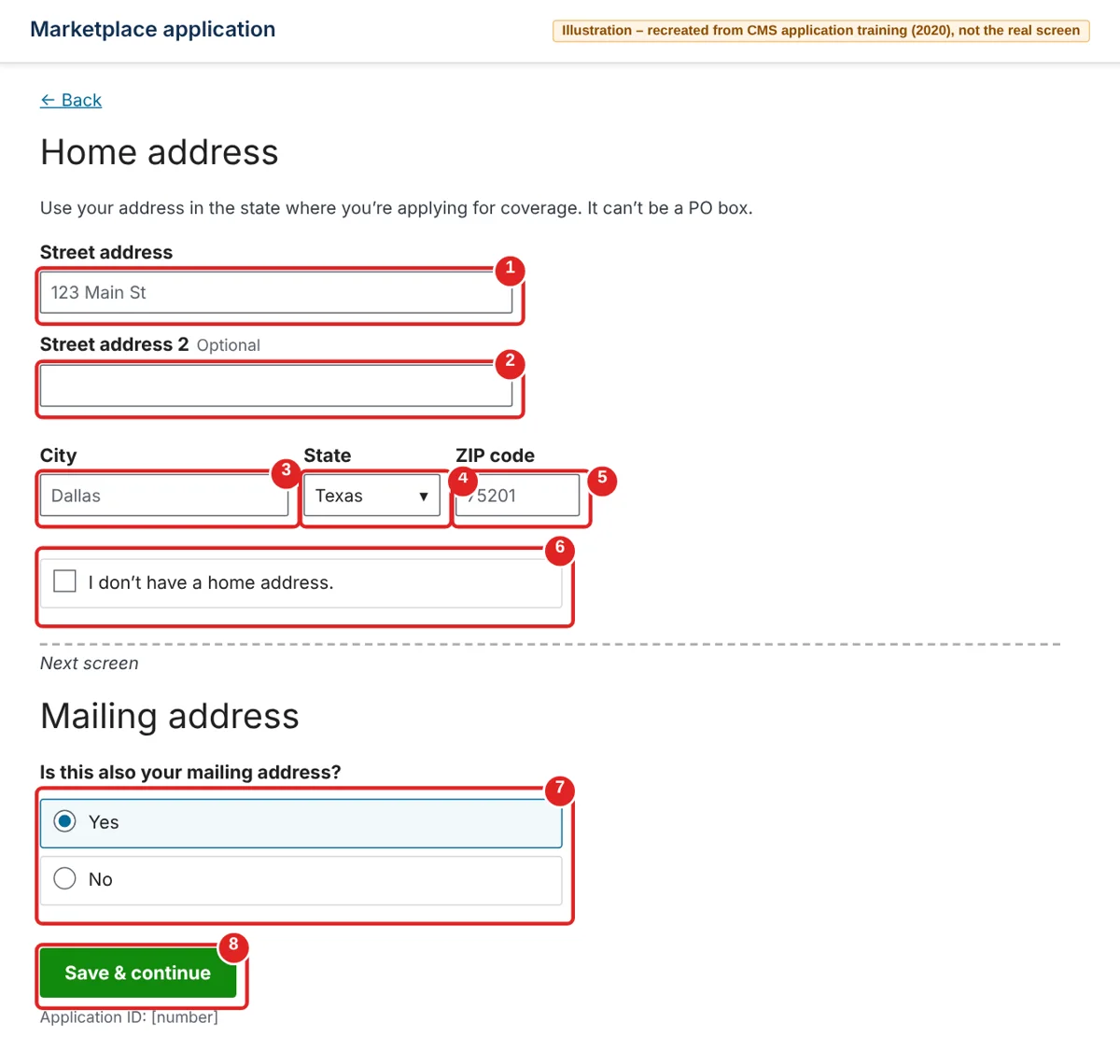
| # | Box | What to do | Example | Watch out |
|---|---|---|---|---|
| ① | Street address | Your home address | 123 Main St | It can’t be a PO box |
| ② | Street address 2 | Optional: apartment or unit | — | — |
| ③ | City | Your city | Dallas | — |
| ④ | State | Your state | Texas | Must be the state you’re applying in |
| ⑤ | ZIP code | Your ZIP code | 75201 | — |
| ⑥ | I don’t have a home address | Check only if you have no home address | — | — |
| ⑦ | Is this also your mailing address? | On the next screen: Yes, or No to add a different one | Yes | — |
| ⑧ | Save & continue | Click it | — | If the post office suggests a slightly different address, pick the right one |
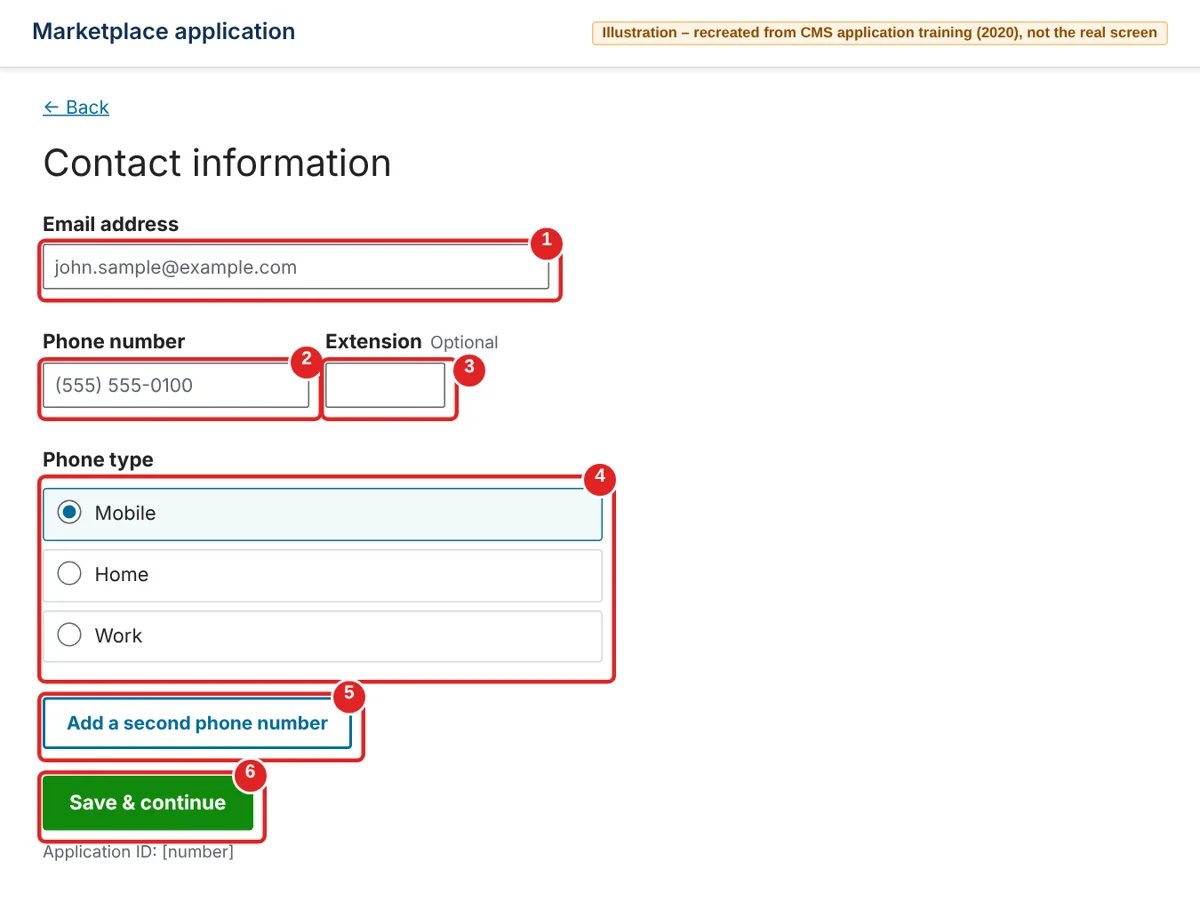
| # | Box | What to do | Example | Watch out |
|---|---|---|---|---|
| ① | Email address | Your email | john.sample@example.com | — |
| ② | Phone number | Your phone | Your mobile number | — |
| ③ | Extension | Optional | — | — |
| ④ | Phone type | Mobile, Home or Work | Mobile | — |
| ⑤ | Add a second phone number | Optional | — | — |
| ⑥ | Save & continue | Click it | — | Next you’ll pick your preferred languages. That doesn’t change your eligibility |
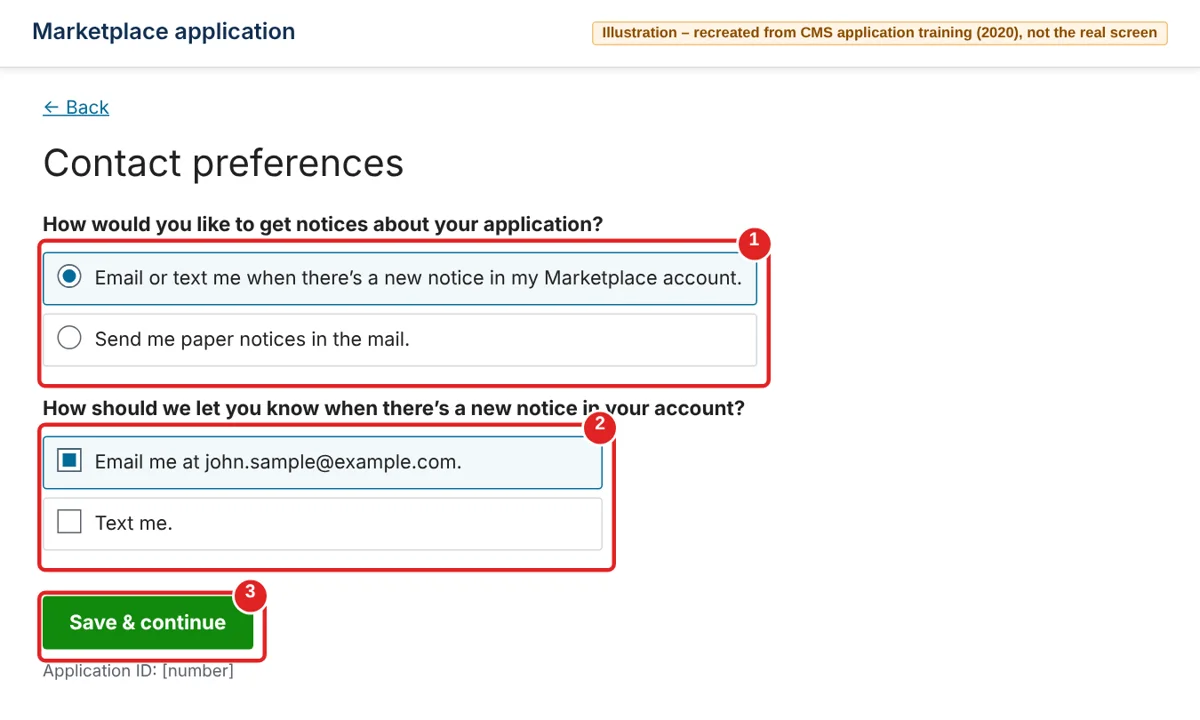
| # | Box | What to do | Example | Watch out |
|---|---|---|---|---|
| ① | How would you like to get notices? | Email/text, or paper mail | Email or text me | — |
| ② | How should we let you know…? | Email, text, or both | Email me | Your deadline notices come this way, so pick something you check |
| ③ | Save & continue | Click it | — | The next screen asks if a professional is helping you. If a friend or family member is helping, pick No |
Confirm who needs coverage and your tax setup
Now, who’s on the application. If it’s just you, this is quick. If you have a spouse or kids, add each person here.
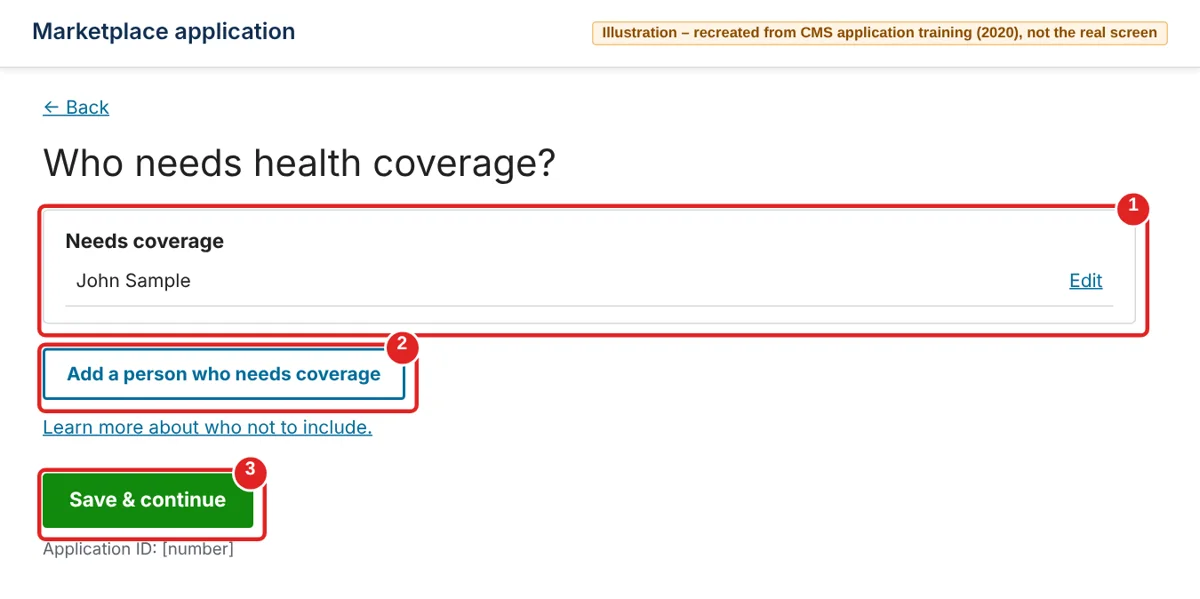
| # | Box | What to do | Example | Watch out |
|---|---|---|---|---|
| ① | Needs coverage | Check that everyone is listed. Click Edit to fix a mistake | John Sample | — |
| ② | Add a person who needs coverage | Add your spouse or each child who needs a plan | — | — |
| ③ | Save & continue | Click it | — | — |
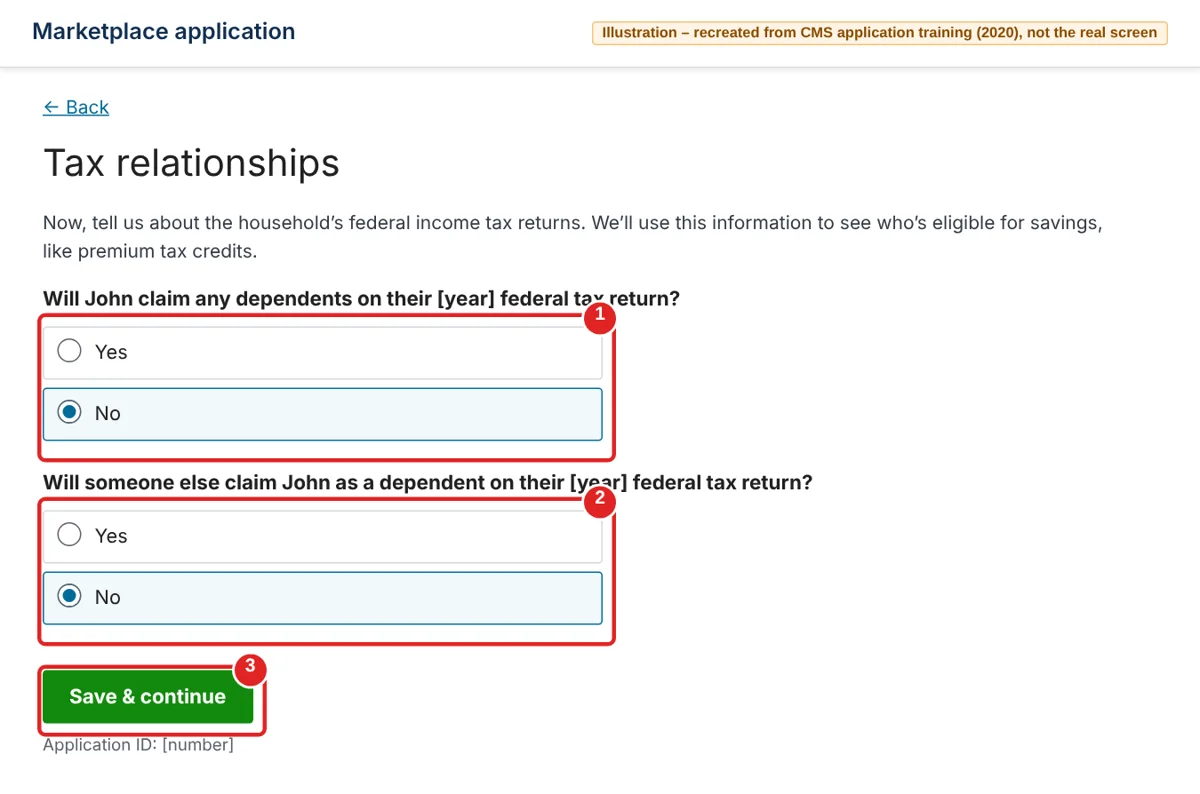
| # | Box | What to do | Example | Watch out |
|---|---|---|---|---|
| ① | Will you claim any dependents? | Yes or no, for your tax return | No | — |
| ② | Will someone else claim you as a dependent? | Yes or no | No | — |
| ③ | Save & continue | Click it | — | Married people also get a question about filing jointly |
Still on your job plan because it hasn’t ended yet? A later screen asks what coverage each person has now. Check Coverage through their job for yourself. Don’t check COBRA unless you’re enrolled in COBRA and plan to keep it.
After this come a few more household screens: Social Security numbers, citizenship or immigration status, and questions like whether anyone is pregnant. Answer them for each person.
Report your income, including unemployment
This is the section where losing your job matters most. The first screens ask about income you get this month, like unemployment benefits. Later you’ll check your total for the whole year.
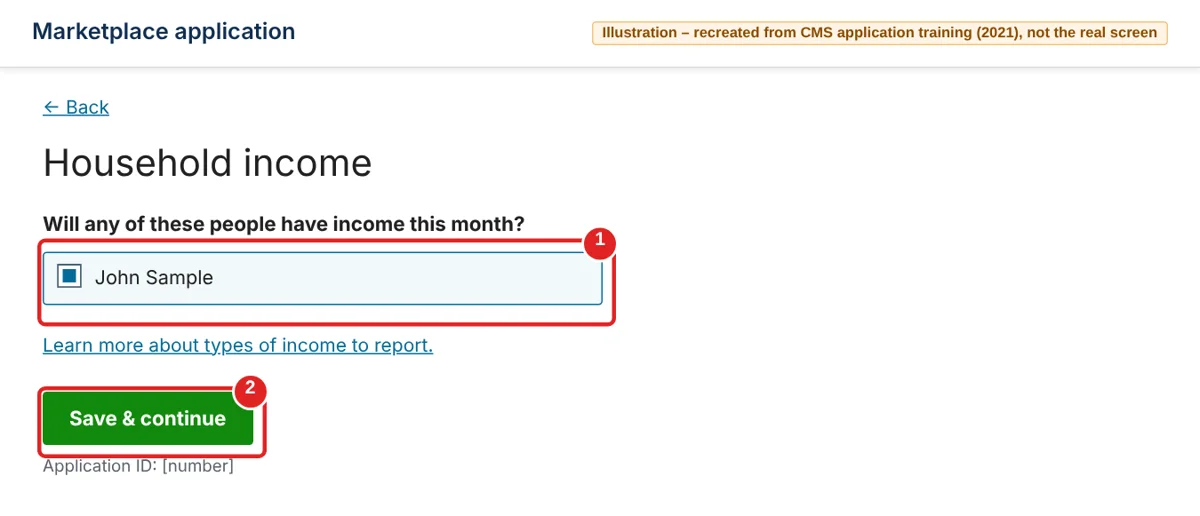
| # | Box | What to do | Example | Watch out |
|---|---|---|---|---|
| ① | Will any of these people have income this month? | Check each person with income this month | John Sample | Unemployment benefits count as income |
| ② | Save & continue | Click it | — | Next you may be asked about expenses like student loan interest |
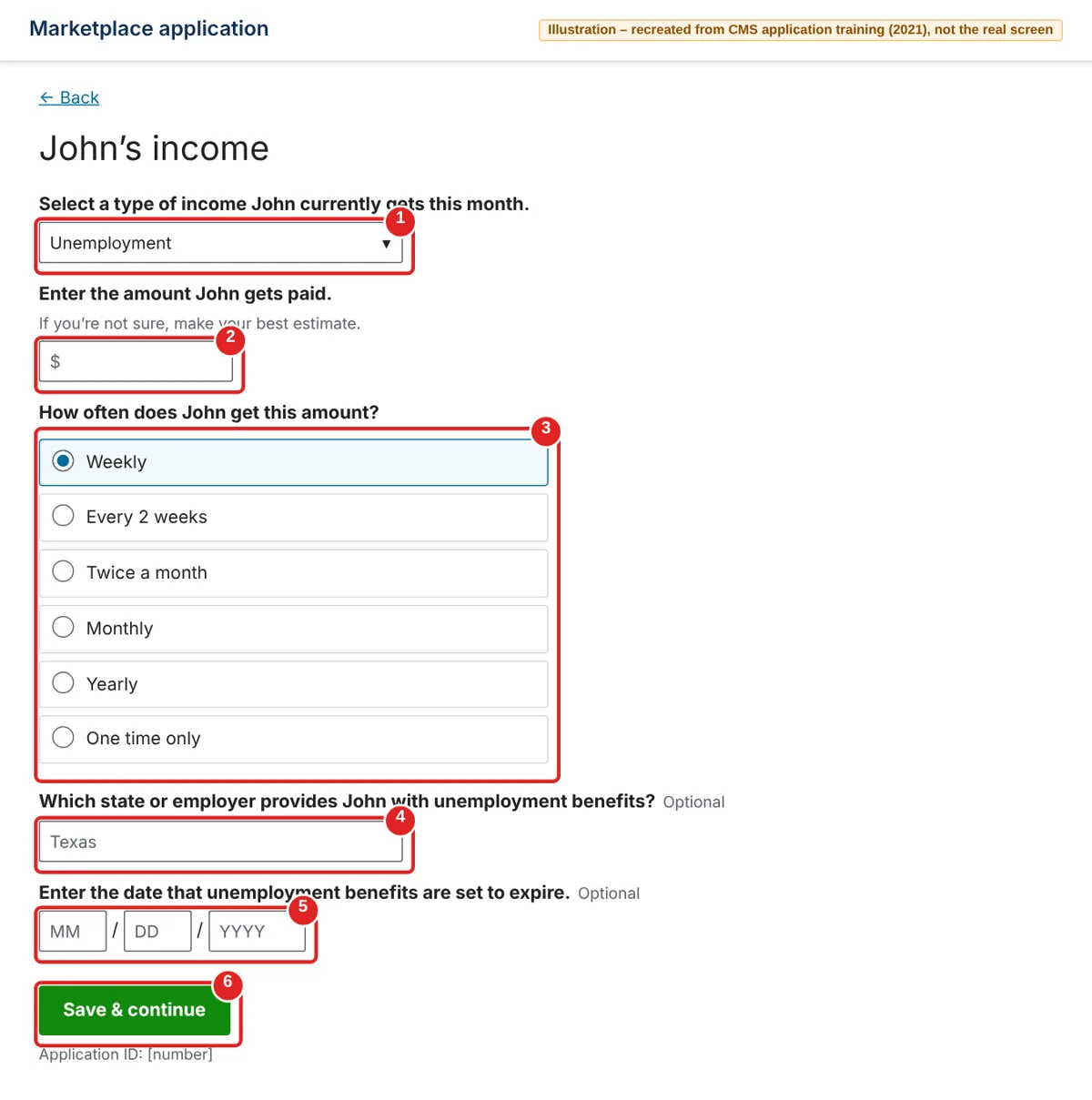
| # | Box | What to do | Example | Watch out |
|---|---|---|---|---|
| ① | Type of income | Pick Unemployment | Unemployment | If you also have a new job or side work, add it after this one |
| ② | Amount | Your benefit amount | Your weekly benefit | Not sure yet? Make your best estimate |
| ③ | How often? | How often you get it | Weekly | — |
| ④ | Which state or employer provides… | Optional | Texas | — |
| ⑤ | Date benefits are set to expire | Optional | — | — |
| ⑥ | Save & continue | Click it | — | — |
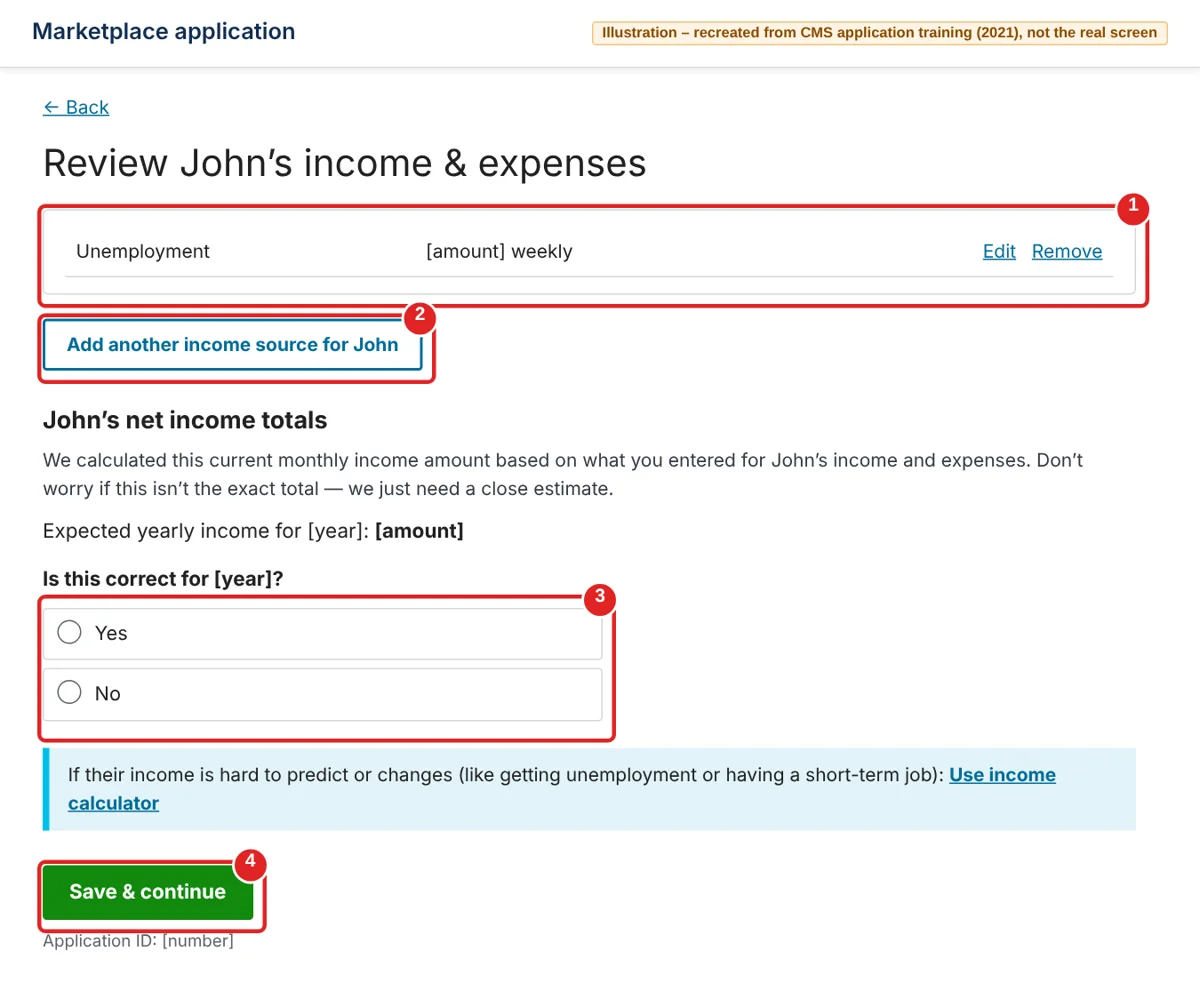
| # | Box | What to do | Example | Watch out |
|---|---|---|---|---|
| ① | Income list | Check what you entered. Edit or Remove to fix it | — | — |
| ② | Add another income source | Add any other income | — | — |
| ③ | Is this correct for [year]? | Yes if the yearly total is close. No to enter your own estimate | — | Lost your job mid-year? Pick No and enter your best guess for the whole year, including what you already earned at your old job |
| ④ | Save & continue | Click it | — | — |
The one people trip on here is the yearly total. HealthCare.gov bases your savings on your expected income for the year you want coverage. If your guess is off, you could have to pay money back at tax time. If your income changes later, update your application.
Answer the job-based coverage question
Now the application asks about health coverage from a job. The question is about the date shown on the screen, not today. If nobody will have a job plan offer on that date, the answer is None of these people.
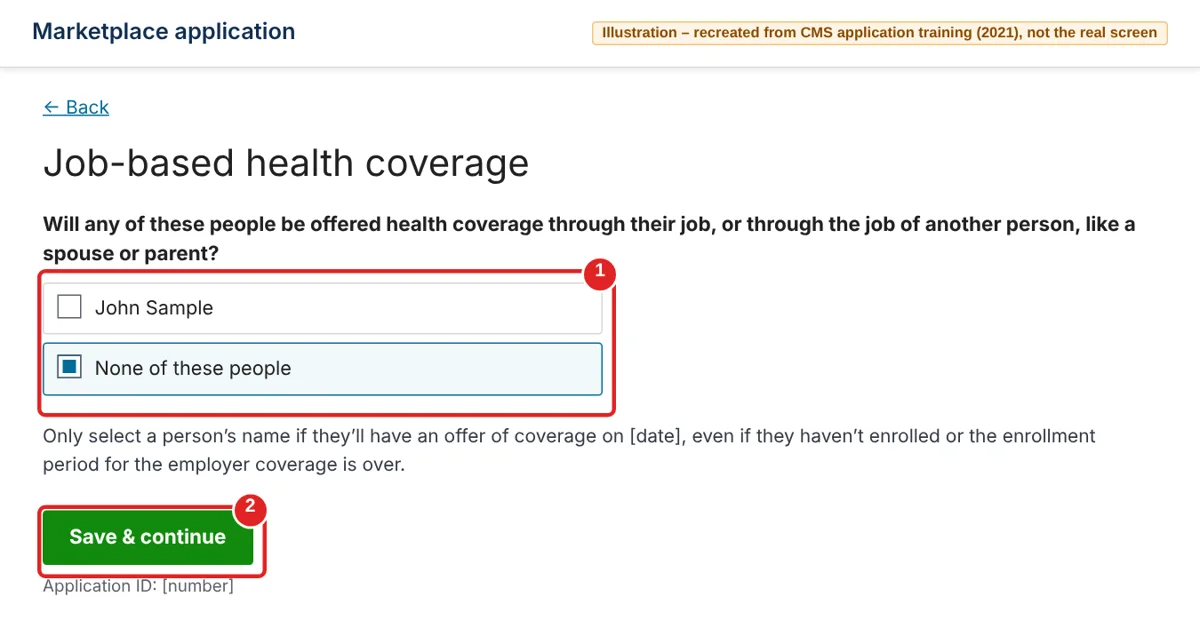
| # | Box | What to do | Example | Watch out |
|---|---|---|---|---|
| ① | Will any of these people be offered health coverage through their job…? | Check a name only if that person will have a job-based offer on the date shown. Otherwise pick None of these people | None of these people | If you’re enrolled in COBRA, a separate question asks about that |
| ② | Save & continue | Click it | — | — |
Report that you lost (or will lose) your coverage
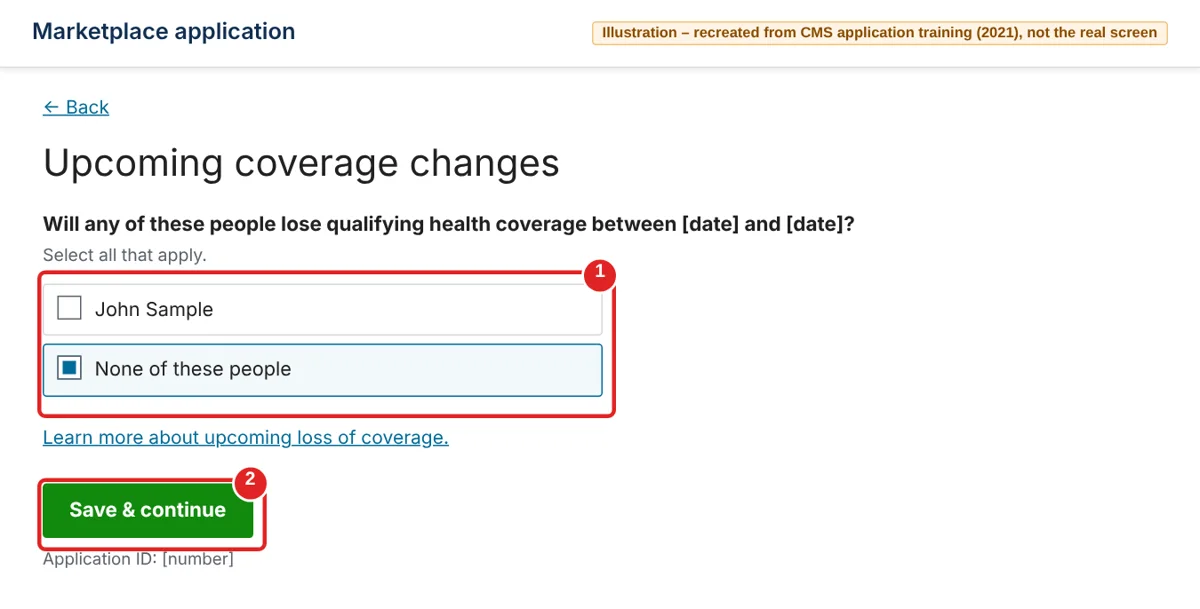
These two screens open your Special Enrollment Period. They come one after the other. The first asks about coverage you already lost, the second about coverage you’re about to lose.
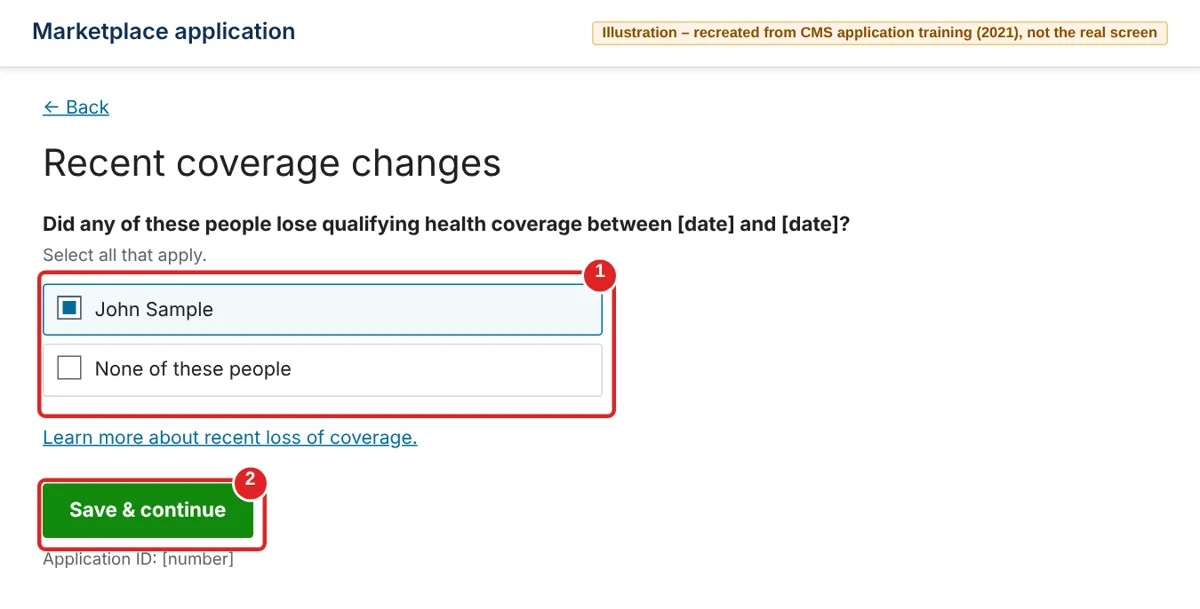
| # | Box | What to do | Example | Watch out |
|---|---|---|---|---|
| ① | Did any of these people lose qualifying health coverage between…? | Check each person whose job coverage already ended in the dates shown. If yours hasn’t ended yet, pick None of these people | John Sample | The dates are filled in for you |
| ② | Save & continue | Click it | — | — |
| # | Box | What to do | Example | Watch out |
|---|---|---|---|---|
| ① | Will any of these people lose qualifying health coverage between…? | Check each person whose job coverage ends in the dates shown. If you already checked your name on the last screen, pick None of these people | None of these people | — |
| ② | Save & continue | Click it | — | — |
You may be asked for the date your coverage ends. Use the date on your employer’s or insurer’s letter. After that come screens where you review your answers, sign and submit. We don’t show them here because we couldn’t find an official picture of them. Read each answer once more before you sign.
Read your eligibility results
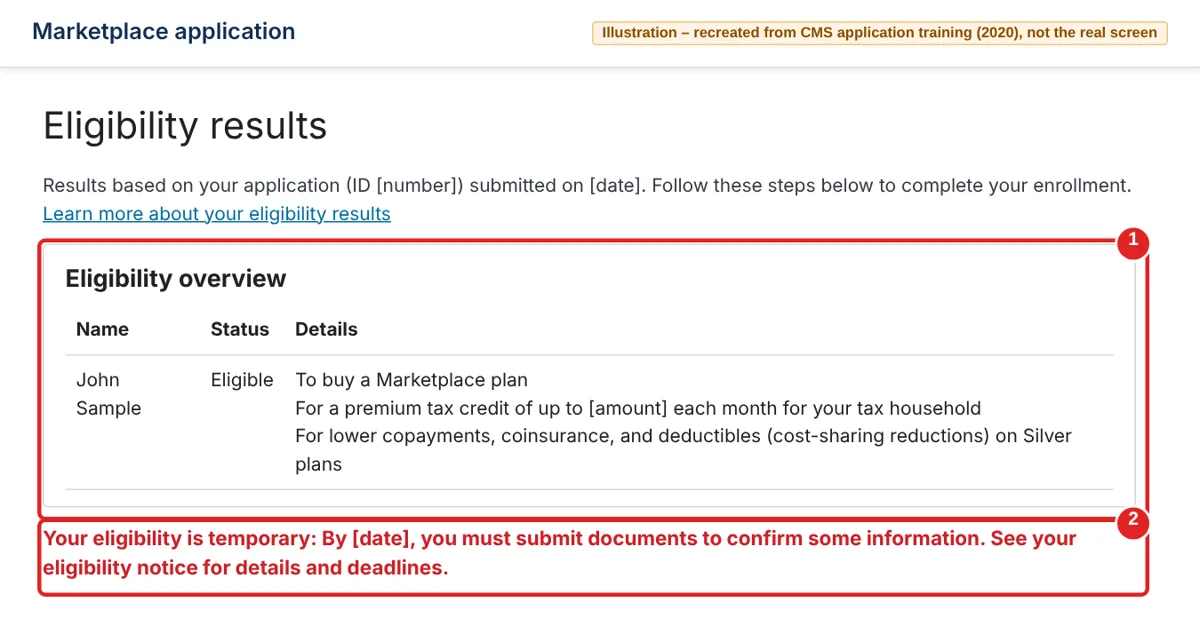
Submitted. Right away you’ll see what you qualify for. Look for your tax credit and any note that says you need to send documents.
| # | What you see | What it means | What to do |
|---|---|---|---|
| ① | Eligibility overview | Whether you can buy a plan, your tax credit, and any extra Silver plan savings | Note your tax credit amount |
| ② | Red note about documents | You need to send proof of something, like your coverage loss | Write down the deadline. Details are in your eligibility notice under Messages |
Then continue to enrollment from this page. HealthCare.gov says it’s best to pick a plan first and send documents afterward.
Choose how much tax credit to use
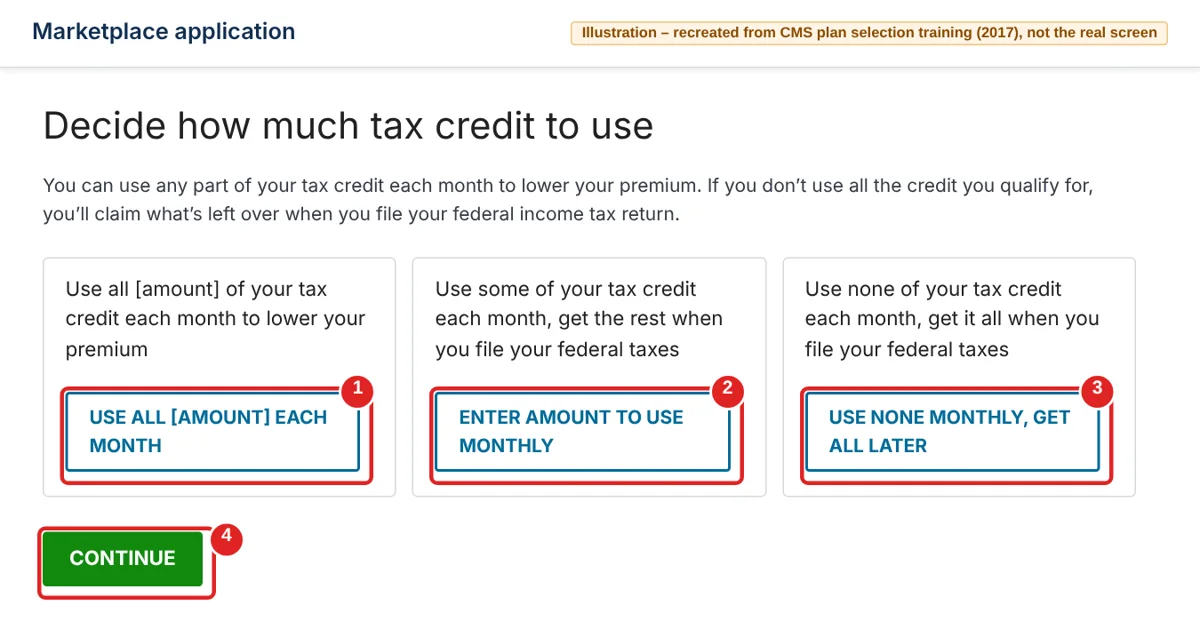
Before you pick a plan, you decide how much of your tax credit to use each month. Using more of it now means a lower bill each month.
| # | Box | What it means | What to do | Watch out |
|---|---|---|---|---|
| ① | Use all of your tax credit each month | Lowest monthly bill | Pick this for the lowest monthly price | The credit is based on your income guess, so update your application if your income changes |
| ② | Enter amount to use monthly | Use part now, get the rest at tax time | Type the amount you want to use each month | — |
| ③ | Use none monthly, get all later | Pay full price now, get it all at tax time | You pay the full premium each month | — |
| ④ | Continue | — | Click it | — |
Next comes a short to-do list: tobacco use, checking your doctors and drugs, an estimate of yearly costs, and whether you want a separate dental plan. Then you’ll see the plan list — like the one in Step 9. Click Enroll on the plan you want.
Confirm your plan and pay
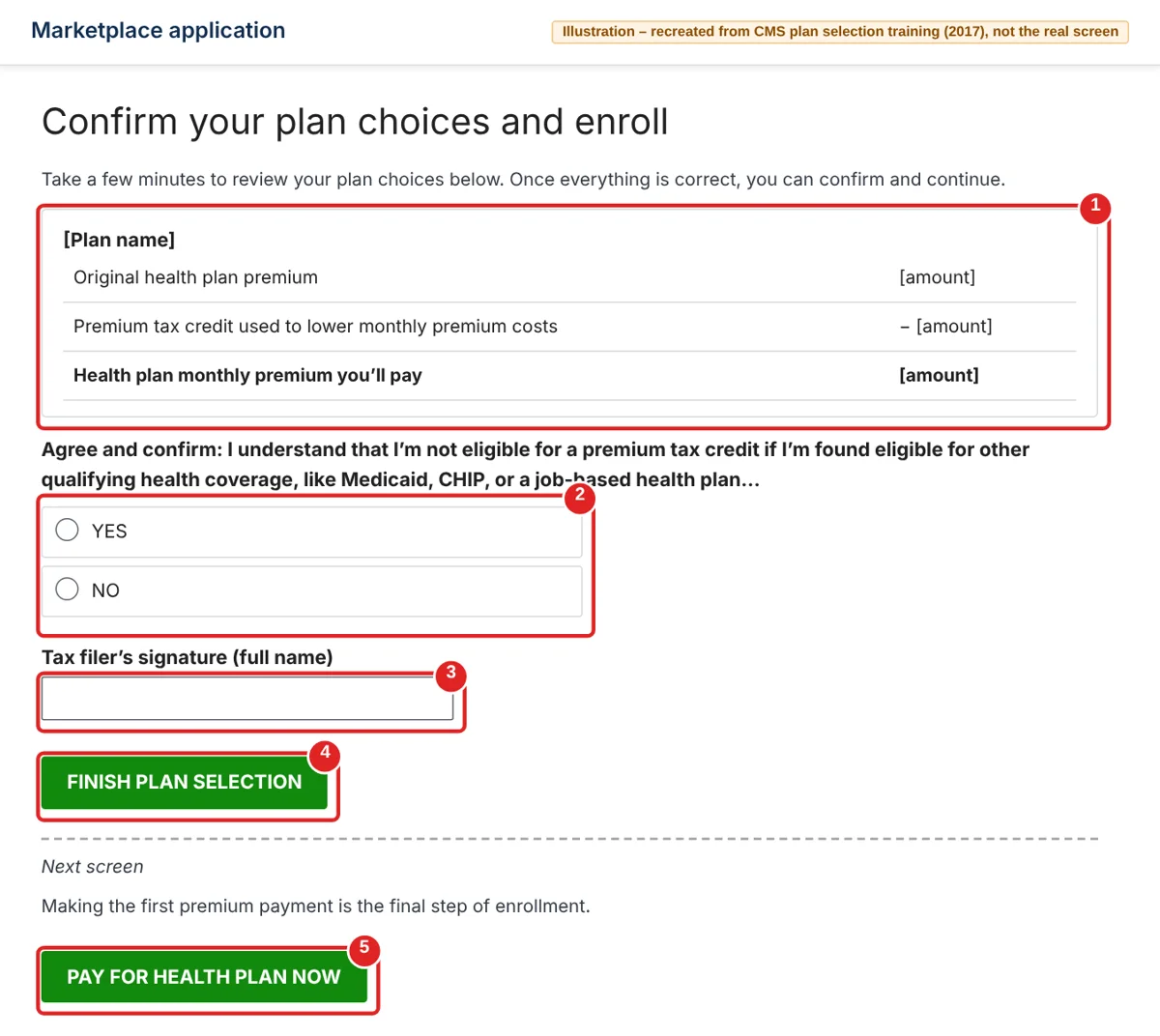
Almost there. Check the price, sign with your name, and pay your first month. You’re not fully enrolled until that first payment goes through.
| # | Box | What to do | Example | Watch out |
|---|---|---|---|---|
| ① | Price summary | Check the full premium, your tax credit, and what you’ll pay each month | — | — |
| ② | Agree and confirm | Read it and pick Yes | Yes | If you later qualify for Medicaid, CHIP or a job plan, you must contact the Marketplace to end your Marketplace coverage and tax credit |
| ③ | Tax filer’s signature | Type your full name | John Sample | — |
| ④ | Finish plan selection | Click it | — | — |
| ⑤ | Pay for health plan now | On the next screen, pay your first month online, if offered | — | Otherwise, pay the insurance company the way they tell you |
Upload proof that you lost your coverage
Last step. If your results asked for documents, send a letter showing your lost coverage and the date it ends. You have 30 days after you pick a plan.
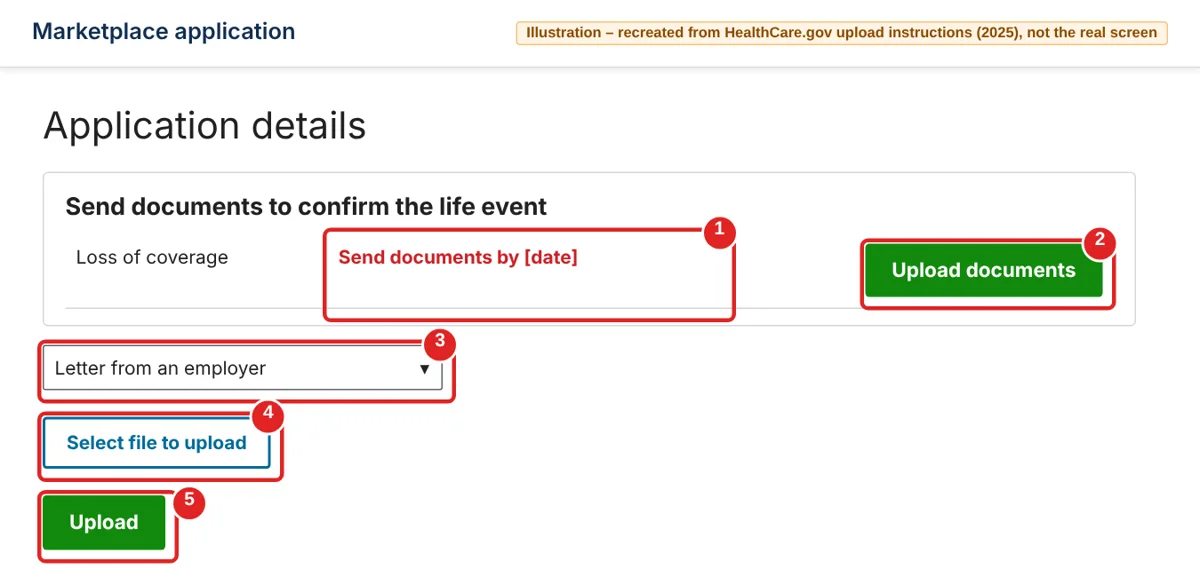
| # | Box | What to do | Example | Watch out |
|---|---|---|---|---|
| ① | Send documents by [date] | Your deadline | — | Mark it on your calendar |
| ② | Upload documents | Click it | — | Find this under Application details for your application |
| ③ | Document type | Pick the kind of document you have | Letter from an employer | — |
| ④ | Select file to upload | Pick the file on your computer or phone | A clear photo or scan | PDF, JPG, PNG and a few others. Under 10 MB. No special characters in the file name |
| ⑤ | Upload | Click it | — | A checkmark shows when it worked |
You did it. HealthCare.gov says you should get a letter in your account within a couple of weeks telling you whether your Special Enrollment Period was confirmed. Stuck anywhere? Call the Marketplace Call Center at 1-800-318-2596 (TTY 1-855-889-4325), open 24 hours a day, 7 days a week, except holidays.
If you might qualify for Medicaid
If your income dropped a lot, you may qualify for Medicaid. There’s no sign-up season — you can apply any time of year through your state’s Medicaid agency. Find how to apply in your state.
Should I take COBRA or a Marketplace plan?
COBRA lets you keep your old job plan for a limited time, usually up to 18 months, but you usually pay the full premium yourself plus a small fee. Compare that with the Marketplace prices you found above.
| Your situation | Can you switch to a Marketplace plan? |
|---|---|
| You lost job coverage in the last 60 days | Yes — even if you were offered COBRA |
| Your COBRA coverage runs out | Yes — you get a Special Enrollment Period |
| You cancel COBRA early, and it’s been more than 60 days since your job plan ended | No — you’ll have to wait until the next Open Enrollment |
FAQ
How long do I have to get health insurance after losing my job? 60 days from the day your job coverage ends. You can also apply up to 60 days before it ends.
I quit my job. Can I still get a special sign-up window? Yes. HealthCare.gov says leaving a job for any reason, even if you quit or get fired, counts.
When does new health insurance start after losing my job? The first day of the next month, if you pick a plan by the end of the month your job coverage ends.
Is COBRA cheaper than Marketplace insurance? It depends on your income and the plans in your area. Use the preview steps above and compare the result with the price on your COBRA offer.
Can I apply for Medicaid right away? Yes. You can apply for Medicaid any time of year.
I live in California or New York. Do I use HealthCare.gov? No. California uses Covered California and New York uses NY State of Health.
Who can I call for help? The Marketplace Call Center: 1-800-318-2596 (TTY 1-855-889-4325), open 24/7 except holidays.
Sources
All checked on November 3, 2026.
- HealthCare.gov, If you lose job-based coverage
- HealthCare.gov, Special Enrollment Periods and Your options outside Open Enrollment
- HealthCare.gov, Getting Medicaid & CHIP
- HealthCare.gov, COBRA coverage when you’re unemployed
- HealthCare.gov, Dates and deadlines and Contact us
- CMS, Plan Year 2027 Marketplace fact sheet and State-based marketplaces
- CMS, Special Enrollment Periods job aid (March 2026)
- HealthCare.gov, Create an account, How to upload documents and Confirm your Special Enrollment Period
- CMS training material used for the recreated screens: Create a Marketplace Account, Family and Household Composition, Household Income, Employer-Sponsored Coverage, Plan Compare Walk-through, and HealthCare.gov’s upload instructions (PDF)
Update log
- Nov 3, 2026: First published.
- Nov 3, 2026: Added Steps 10–23: creating an account, logging in, the full application, picking a plan, paying, and uploading proof of coverage loss.